SPF Record Examples: Ready-to-Copy Records for Google Workspace, Microsoft 365, Zoho, SendGrid and Multiple Email Senders
SPF record examples to copy for Google Workspace, Microsoft 365, Zoho, SendGrid, Mailgun and SES, plus how to merge senders into one valid record.

On this page
- What does a valid SPF record look like?
- SPF record examples for popular email providers
- SPF record examples for sending platforms and ESPs
- Comparison table: provider includes at a glance
- How do you combine multiple senders in one SPF record?
- How do you stay under the 10 DNS lookup limit?
- Should your SPF record end in ~all or -all?
- SPF record examples for cold email domains
- How to build and publish your SPF record step by step
- Common SPF record mistakes and how to fix them
- Does SPF alone get your email delivered?
- Frequently asked questions
- Conclusion: key takeaways
- Editorial policy
- Content transparency
- About the author
Looking for SPF record examples you can copy and adapt? A valid SPF record is one TXT record on your domain that starts with v=spf1, lists every service allowed to send your mail, and ends with an all rule. For Google Workspace, that is v=spf1 include:_spf.google.com ~all. If you use several senders, you merge them into that single record instead of adding a second one.
This article gives you ready-to-copy records for the most common mailbox providers and sending platforms, shows how to combine them safely, and explains how to stay under the 10 DNS lookup limit. If you would rather skip the manual work, the free LeadCanal SPF record generator builds a clean record from the services you pick.
Quick answer: Copy the example for your email provider, add one include: per extra sending service, and publish it as a single TXT record at your root domain.
- Google Workspace:
v=spf1 include:_spf.google.com ~all - Microsoft 365:
v=spf1 include:spf.protection.outlook.com -all - Google Workspace plus SendGrid:
v=spf1 include:_spf.google.com include:sendgrid.net ~all - Never publish two SPF records on the same domain, and keep the total under 10 DNS lookups.
- Test the result with an SPF checker before you send campaigns.
Free LeadCanal tools for this guide
Check and fix it yourself in a few seconds, no signup needed.
SPF record generator →SPF checker →Domain health checker →DMARC generator →
What does a valid SPF record look like?
Every SPF record follows the same pattern defined in RFC 7208. It has a version tag, one or more mechanisms that describe who may send, and a final rule for everyone else.
v=spf1 [mechanisms] [all rule]Here is the simplest real-world example, for a domain that only sends through Google Workspace:
Type:  TXT
Host:  @
Value: v=spf1 include:_spf.google.com ~all
Read it left to right. v=spf1 says this is an SPF record. include:_spf.google.com authorizes Google’s mail servers. ~all tells receivers to treat mail from any other server as a soft fail.
The record lives at the domain used in the envelope sender (the Return-Path), which for most mailbox providers is the same as your From domain. If you want a deeper walkthrough of each part, our SPF syntax reference covers every mechanism and qualifier in detail.
The mechanisms you will see in these examples
- include: authorizes another domain’s SPF record, usually a provider such as Google or SendGrid.
- ip4: and ip6: authorize a specific IP address or range, such as your own mail server.
- a and mx: authorize the IPs behind your domain’s A record or MX records.
- all: the catch-all at the end that decides what happens to every other sender.
- redirect= a modifier that hands the whole policy to another domain’s record.
RFC 7208 discourages the ptr mechanism because it is slow and unreliable, so none of the examples below use it.
SPF record examples for popular email providers
These are the include values each provider documents. Copy the one that matches your mailbox host, then add any extra senders using the combining rules further down.
Google Workspace SPF record example
v=spf1 include:_spf.google.com ~allThis is the record Google shows in its Set up SPF guide for Workspace domains. Google’s include covers all of its outbound mail servers, so you do not need to list Gmail IP ranges yourself. If you are setting up a new Workspace domain, pair this with correct MX records; our guide to Google Workspace MX records covers that part.
Microsoft 365 (Office 365) SPF record example
v=spf1 include:spf.protection.outlook.com -allMicrosoft’s SPF configuration documentation uses this include for Microsoft 365 domains and shows -all in its examples. If your organization still runs on-premises Exchange alongside Microsoft 365, add your on-premises outbound IP with an ip4: mechanism.
Zoho Mail SPF record example
v=spf1 include:zohomail.com ~allZoho runs regional data centers, and the include differs by region (for example, EU and India accounts use regional domains). Copy the exact value shown in your Zoho Mail admin console under domain authentication, because the right one depends on where your account is hosted.
Your own mail server or a fixed IP
v=spf1 ip4:203.0.113.25 ~all
v=spf1 ip4:203.0.113.0/24 ip6:2001:db8::/32 ~all
v=spf1 mx ~all
The first line authorizes one server. The second authorizes a full IPv4 range plus an IPv6 range. The third authorizes whichever servers your MX records point to, which is handy when your inbound and outbound servers are the same machine. The IPs shown are documentation ranges, so replace them with your real addresses.
SPF record examples for sending platforms and ESPs
Transactional and marketing platforms send on your behalf. Whether you need their include depends on which domain they put in the Return-Path. Many platforms use their own bounce domain or a subdomain of yours, in which case the SPF check happens there, not on your root domain.
SendGrid
v=spf1 include:sendgrid.net ~allWhen you use SendGrid’s domain authentication with automated security, SendGrid publishes SPF for a CNAME subdomain it manages, so you may not need to touch your root record at all. Add include:sendgrid.net to your root record only if you send with your own root domain as the Return-Path.
Mailgun
v=spf1 include:mailgun.org ~allMailgun usually asks you to verify a sending subdomain such as mg.example.com. Publish this record on that subdomain, which keeps Mailgun’s lookups out of your root SPF record.
Amazon SES
v=spf1 include:amazonses.com ~allBy default, Amazon SES uses its own MAIL FROM domain, so SPF passes for amazonses.com without any change on your side. If you configure a custom MAIL FROM domain (for example bounce.example.com) to get SPF alignment for DMARC, publish this record on that subdomain.
Mailchimp
v=spf1 include:servers.mcsv.net ~allThis is the include long associated with Mailchimp’s sending servers. Mailchimp now authenticates mainly through DKIM CNAME records and its own bounce domain, so follow the steps shown on the domain authentication screen in your account before editing SPF. If Mailchimp does not ask for the include, leave it out and save a lookup.
Comparison table: provider includes at a glance
| Service | SPF value to add | Where to publish it |
|---|---|---|
| Google Workspace | include:_spf.google.com |
Root domain |
| Microsoft 365 | include:spf.protection.outlook.com |
Root domain |
| Zoho Mail | include:zohomail.com (region-specific) |
Root domain |
| SendGrid | include:sendgrid.net |
Root only if your domain is the Return-Path; otherwise handled by SendGrid’s CNAME subdomain |
| Mailgun | include:mailgun.org |
Your verified sending subdomain |
| Amazon SES | include:amazonses.com |
Custom MAIL FROM subdomain |
| Mailchimp | include:servers.mcsv.net |
Only if your account’s setup screen asks for it |
| Own server | ip4: / ip6: / mx |
The domain that server sends as |
How do you combine multiple senders in one SPF record?
A domain can have only one SPF record. RFC 7208 states that if a receiver finds more than one record starting with v=spf1, the result is a permanent error, which means SPF fails for every message. The fix is always the same: merge everything into a single record with one v=spf1 at the start and one all at the end.
Here is a broken setup that shows up in DNS audits all the time:
v=spf1 include:_spf.google.com ~all
v=spf1 include:sendgrid.net ~all
And here is the corrected, merged version:
v=spf1 include:_spf.google.com include:sendgrid.net ~allCombined SPF record examples you can adapt
Google Workspace plus Mailgun on the root domain:
v=spf1 include:_spf.google.com include:mailgun.org ~allMicrosoft 365 plus SendGrid plus an office server:
v=spf1 ip4:203.0.113.25 include:spf.protection.outlook.com include:sendgrid.net -allGoogle Workspace plus Amazon SES plus Mailchimp:
v=spf1 include:_spf.google.com include:amazonses.com include:servers.mcsv.net ~allMigrating from Microsoft 365 to Google Workspace (temporary):
v=spf1 include:_spf.google.com include:spf.protection.outlook.com ~allRemove the old provider once migration is finished, so you are not authorizing servers you no longer use.
Ordering tips
- Put
ip4:andip6:entries first. They cost no DNS lookups and match quickly. - Put your main mailbox provider’s include next, since most of your mail comes from it.
- Keep
allas the very last term. Anything after it is ignored. - Use single spaces between terms and no quotes inside the value unless your DNS host asks you to split long strings.
How do you stay under the 10 DNS lookup limit?
SPF evaluation may trigger at most 10 DNS lookups. The mechanisms that count are include, a, mx, ptr, exists and the redirect modifier, and nested includes inside a provider’s record count too. ip4, ip6 and all cost nothing. Go over the limit and receivers return a permanent error, so SPF fails even for legitimate mail.
RFC 7208 also limits “void lookups” (lookups that return no answer) to two, so a typo in an include can break the record in a less obvious way.
Practical ways to keep the count low:
- Delete includes for tools you no longer use. Old CRMs and abandoned newsletter tools are the most common culprits.
- Move platforms to subdomains. Mailgun on
mg.example.comor SES onbounce.example.comkeeps their lookups off your root record. - Replace
aandmxwithip4when the server IP is fixed and under your control. - Check whether a platform needs the include at all. If it uses its own Return-Path domain, its include on your root adds lookups without helping.
If you are already over the limit, our step-by-step fix for SPF too many DNS lookups walks through flattening and restructuring safely.
Should your SPF record end in ~all or -all?
The final qualifier tells receivers what to do with mail from servers not listed in your record. There are four options, and only two are sensible for a live domain.
| Qualifier | Name | What it tells receivers | When to use it |
|---|---|---|---|
~all |
Soft fail | Unlisted senders are probably not authorized; accept but treat with suspicion | Most domains, especially during setup or when senders change often |
-all |
Hard fail | Unlisted senders are not authorized | Once you are confident every sender is listed, and for domains that never send mail |
?all |
Neutral | No statement about unlisted senders | Rarely useful; offers almost no protection |
+all |
Pass | Any server in the world may send as you | Never |
In practice, many receivers rely on DMARC to decide what to do with failing mail, so the difference between ~all and -all matters less than having DMARC in place. A common approach is to start with ~all, monitor DMARC reports, then tighten to -all when you are sure nothing legitimate is failing.
SPF record example for a domain that never sends email
v=spf1 -allParked domains and brand-protection domains should publish this record. It tells receivers that no server is allowed to send as that domain, which makes spoofing much harder.
SPF record examples for cold email domains
Cold email setups usually run on separate sending domains with mailboxes from Google Workspace or Microsoft 365, connected to a sequencing tool such as Instantly. The sequencing tool sends through those mailboxes over the provider’s servers, so the SPF record only needs the mailbox provider’s include.
For a cold domain on Google Workspace:
v=spf1 include:_spf.google.com ~allFor a cold domain on Microsoft 365:
v=spf1 include:spf.protection.outlook.com -allKeep each cold domain’s record minimal. Do not copy your main domain’s record with all its marketing tools onto outreach domains, because that authorizes services that never send from them. Our article on primary domain vs cold email domain explains why separating them protects your main brand’s reputation.
If you run a private SMTP server for outreach instead of hosted mailboxes, authorize its IP with ip4:. LeadCanal’s private email server setup service configures SPF, DKIM and DMARC for each domain as part of the build.
How to build and publish your SPF record step by step
- List every service that sends as your domain. Include your mailbox provider, CRM, help desk, newsletter tool, transactional email service, invoicing software and any on-site servers.
- Check whether you already have an SPF record. Run your domain through the LeadCanal SPF checker. If a record exists, you will edit it rather than add a new one.
- Find each service’s documented include or IP. Use the examples above or the provider’s help docs, and note which services use a subdomain instead of your root.
- Generate the merged record. Open the SPF record generator, select your providers, add any IPs, choose
~allor-all, and copy the output. - Publish one TXT record at the root (@). Replace the old SPF value instead of creating a second TXT record that starts with
v=spf1. - Wait for DNS to update, then test. Re-run the SPF checker to confirm a single valid record and a lookup count under 10.
- Add DKIM and DMARC. Create signing keys with the DKIM record generator and a policy with the DMARC record generator, so receivers can align and enforce your authentication.
- Run a full health check. The domain health checker reviews SPF, DKIM, DMARC, MX and blacklist status together, which catches problems a single test can miss.
For a beginner-focused version of this process with DNS host screenshots in mind, see our walkthrough on how to create an SPF record.
Common SPF record mistakes and how to fix them
| Mistake | Example | Fix |
|---|---|---|
| Two SPF records | Separate records for Google and SendGrid | Merge into one record with both includes |
| Missing version tag | include:_spf.google.com ~all |
Start with v=spf1 |
| Terms after all | v=spf1 ~all include:sendgrid.net |
Move all to the end |
| Typo in an include | include:_spf.gogle.com |
Correct the domain; typos can cause void lookups |
| Using +all | v=spf1 include:_spf.google.com +all |
Use ~all or -all |
| Too many lookups | Eight or more includes with nested records | Remove unused tools and move platforms to subdomains |
Each TXT string in DNS is limited to 255 characters. If your record grows longer, most DNS hosts split it into multiple quoted strings automatically, and receivers join them back together. A record that long is usually a sign it needs cleaning up.
Does SPF alone get your email delivered?
No. SPF proves a server may send for a domain, but it does not protect the visible From address on its own, and it breaks when mail is forwarded. Since February 2024, Google’s email sender guidelines require all senders to Gmail accounts to set up SPF or DKIM, and bulk senders sending more than 5,000 messages a day to Gmail to set up SPF, DKIM and DMARC. Yahoo introduced matching requirements at the same time.
That is why SPF works best as one part of a full setup. Our SPF vs DKIM vs DMARC comparison explains how the three fit together. If your authentication passes but mail still lands in spam, the cause is usually list quality, volume or content. LeadCanal’s email deliverability service audits all of those alongside your DNS.
Frequently asked questions
How many SPF records can a domain have?
One. A domain must publish only one TXT record that starts with v=spf1. If receivers find two, SPF returns a permanent error and fails for all mail from that domain.
What happens if I have multiple SPF records?
Receivers treat it as a permanent error, so SPF fails even for legitimate messages, which can hurt DMARC results and inbox placement. Merge all mechanisms into one record to fix it.
Can an SPF record include multiple domains?
Yes. Add one include: per provider in the same record, for example v=spf1 include:_spf.google.com include:sendgrid.net ~all. Just keep the total under 10 DNS lookups.
What is the SPF record for Google Workspace?
Google documents v=spf1 include:_spf.google.com ~all. Publish it as a TXT record at your root domain and add other senders to the same record.
What is the SPF record for Office 365?
Microsoft documents v=spf1 include:spf.protection.outlook.com -all for Microsoft 365 domains. Add any on-premises server IPs with ip4: before the include.
Is ~all or -all better?
~all is safer while you are still confirming every sender. -all is stricter and suits domains with a complete, stable list of senders or domains that never send mail. Pair either with DMARC.
Do cold email tools like Instantly need their own SPF include?
Not when they send through connected Google Workspace or Microsoft 365 mailboxes. The mail leaves from the mailbox provider’s servers, so the provider’s include is what SPF needs.
How do I check if my SPF record is working?
Enter your domain into an SPF checker. It should show exactly one record, valid syntax, and a lookup count of 10 or fewer. Then send a test email and confirm the headers show spf=pass.
Conclusion: key takeaways
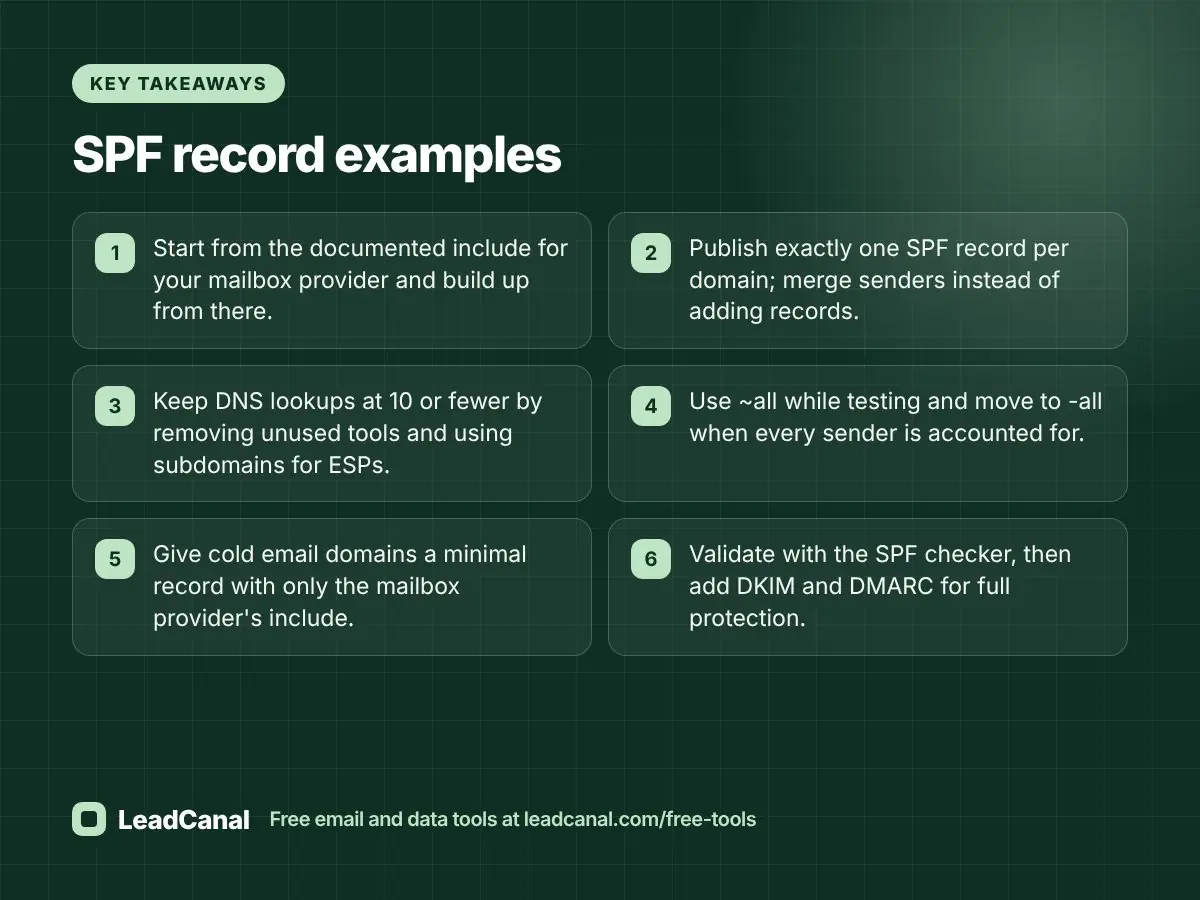
- Start from the documented include for your mailbox provider and build up from there.
- Publish exactly one SPF record per domain; merge senders instead of adding records.
- Keep DNS lookups at 10 or fewer by removing unused tools and using subdomains for ESPs.
- Use
~allwhile testing and move to-allwhen every sender is accounted for. - Give cold email domains a minimal record with only the mailbox provider’s include.
- Validate with the SPF checker, then add DKIM and DMARC for full protection.
Need the whole setup handled across many domains? Request a quote and the LeadCanal team will configure authentication for your sending infrastructure.
Editorial policy
LeadCanal publishes practical guides on email deliverability, cold email and B2B data. Every article is written to solve a specific problem, reviewed for technical accuracy and updated when providers change their requirements. We do not accept paid placements, and we only recommend configurations we use or can verify against official documentation.
Content transparency
This article was researched with keyword data to understand what readers ask about SPF records, and every provider value was checked against official documentation, including RFC 7208 and the Google and Microsoft admin guides. LeadCanal offers the free SPF, DKIM, DMARC and domain health tools mentioned here, and we link to them because they solve the steps described.
About the author
This article was written by the LeadCanal team. We build verified B2B contact lists and run cold email infrastructure every day, which means configuring SPF, DKIM and DMARC across many sending domains. The examples here reflect the records we publish and troubleshoot in real client setups.