How to Create an SPF Record for Your Domain

On this page
Email authentication plays a major role in modern email deliverability and domain security. One of the first and most important authentication methods every domain owner should configure is SPF.
SPF helps mailbox providers verify whether an email server is authorized to send emails on behalf of your domain. Without SPF, attackers can spoof your domain more easily, and your legitimate emails may land in spam folders.
In this complete guide, you’ll learn:
- What SPF is
- How SPF works
- How to create an SPF record
- SPF syntax explained
- Common SPF errors
- Best practices for setup
You can also use the free tools from LeadCanal to generate and test your records:
What is SPF?
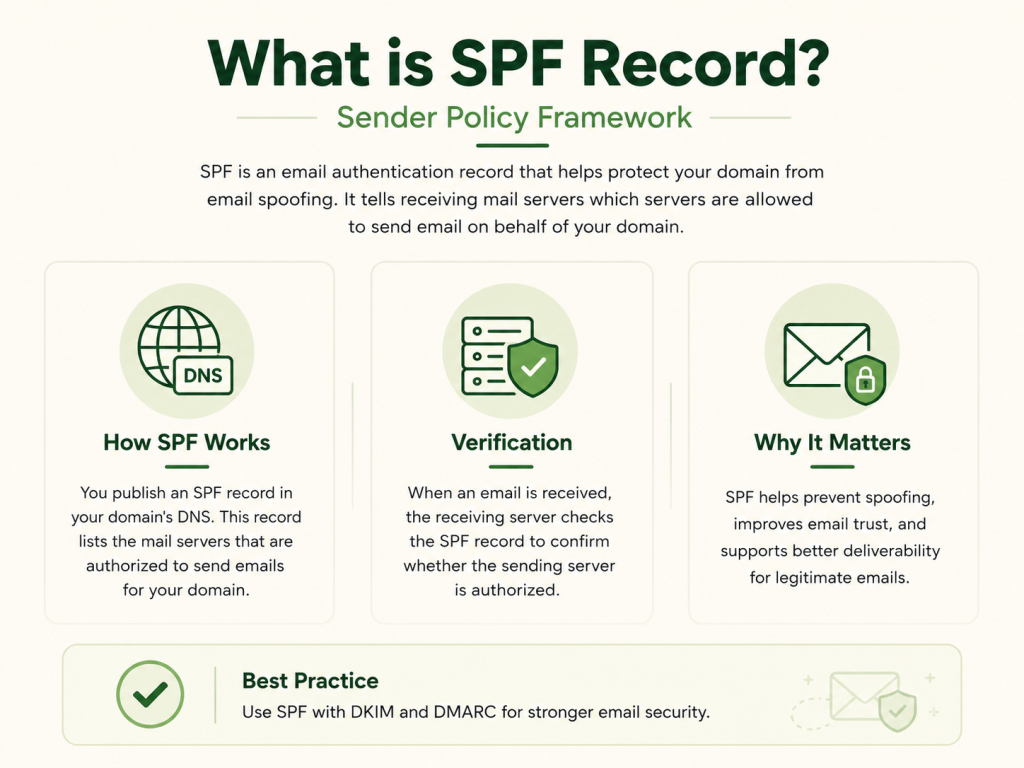
SPF stands for Sender Policy Framework. It is an email authentication protocol designed to prevent unauthorized mail servers from sending emails using your domain.
SPF works through DNS records that specify which servers are allowed to send emails on your behalf.
When mailbox providers like Google Workspace or Microsoft 365 receive an email, they check your SPF record to determine whether the sending server is authorized.
If the server is not listed, SPF may fail.
Why SPF Matters
SPF is important because it improves both email security and email deliverability.
Without SPF:
- Your domain can be spoofed
- Attackers can impersonate your business
- Emails may land in spam folders
- Your domain reputation may decline
With proper SPF setup:
- Receiving servers trust your emails more
- Spoofing risks are reduced
- Deliverability improves
- Email authentication becomes stronger
SPF is especially important for:
- Cold email outreach
- Marketing campaigns
- SaaS notifications
- Transactional emails
- Business communications
SPF Record Syntax Explained
An SPF record is published as a TXT record inside your DNS settings.
Basic SPF example:
v=spf1 include:_spf.google.com ~allEach part of the record has a specific meaning.
v=spf1
This identifies the TXT record as an SPF record.
Example:
v=spf1Every SPF record must begin with this tag.
ip4
The ip4 mechanism authorizes specific IPv4 addresses to send emails.
Example:
v=spf1 ip4:192.168.1.1 ~allThis means the listed server IP is allowed to send mail for the domain.
include
The include mechanism authorizes third-party providers.
Example:
include:_spf.google.comThis is commonly used for:
If you use external platforms to send emails, you usually need include statements.
~all
The ~all mechanism means soft fail.
Example:
~allThis tells receiving servers:
- Unauthorized senders are probably not allowed
- Emails may still be accepted
- Messages may be marked suspicious
Soft fail is recommended during initial setup.
-all
The -all mechanism means hard fail.
Example:
-allThis tells mailbox providers:
- Reject all unauthorized senders
Hard fail offers stronger protection but should only be used after proper testing.
How SPF Authentication Works
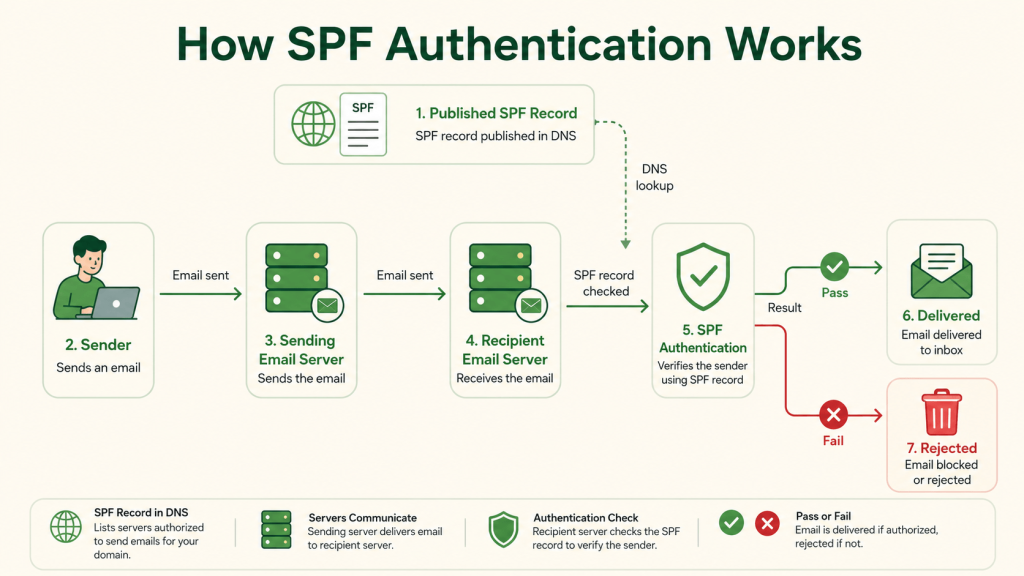
When an email is received, the receiving server performs several checks.
Step 1: Extract Sender Information
The receiving server reads:
- Return-Path domain
- Sending server IP address
Step 2: DNS Lookup
The server checks the domain’s SPF record in DNS.
Example lookup:
v=spf1 include:_spf.google.com ~allStep 3: Verify Authorization
The receiving server checks whether the sender IP is authorized.
If authorized:
- SPF passes
If unauthorized:
- SPF fails
Creating an SPF Record
Creating an SPF record depends on your email providers and sending services.
Google Workspace Example
If your business uses Google Workspace, your SPF record may look like this:
v=spf1 include:_spf.google.com ~all
Microsoft 365
Example For Microsoft 365:
v=spf1 include:spf.protection.outlook.com ~all
Multiple Providers Example
If you use multiple platforms:
v=spf1 include:_spf.google.com include:sendgrid.net ~allThis authorizes:
- Google Workspace
- SendGrid
Where to Add SPF Records
SPF records are added in your DNS provider.
Popular DNS platforms include:
You can create records quickly using the LeadCanal SPF Generator.
SPF SoftFail vs HardFail
One of the most confusing SPF settings is choosing between:
~all-all
SoftFail (~all)
Soft fail is safer during initial deployment.
Benefits:
- Lower risk of blocking legitimate emails
- Allows monitoring
- Easier troubleshooting
Recommended for:
- New setups
- Complex infrastructures
- Businesses still identifying senders
HardFail (-all)
Hard fail is stricter.
Benefits:
- Stronger anti-spoofing protection
- Better enforcement
Risks:
- Legitimate emails may fail if providers are missing
Best used only after:
- Full testing
- SPF validation
- Third-party verification
SPF Lookup Limit Explained
SPF has a major technical limitation:
- Maximum 10 DNS lookups
If your SPF record exceeds this limit:
- SPF fails
- Deliverability issues occur
What Causes Too Many Lookups?
Common causes include:
- Too many include statements
- Multiple third-party tools
- Nested SPF records
Example problematic setup:
v=spf1 include:a.com include:b.com include:c.com include:d.com ~allEach include may generate additional lookups.
How to Reduce SPF Lookups
You can reduce SPF lookups by:
- Removing unused providers
- Using subdomains
- SPF flattening
- Consolidating services
This is especially important for businesses using many marketing or outreach tools.
Common SPF Errors
SPF issues are one of the most common causes of email deliverability problems.
Multiple SPF RecordsA domain should only have one SPF record.
Incorrect example:
v=spf1 include:_spf.google.com ~alland
v=spf1 include:sendgrid.net ~allHaving two separate SPF records causes SPF failure.
Instead, combine them into one record.
SPF PermError
PermError usually occurs due to:
- Too many DNS lookups
- Syntax issues
- Invalid mechanisms
This often causes authentication failure.
Missing Third-Party Providers
Many businesses forget to include:
- CRM systems
- Newsletter tools
- Cold email platforms
This causes legitimate emails to fail SPF.
How to Test SPF
After publishing your SPF record, always verify it.
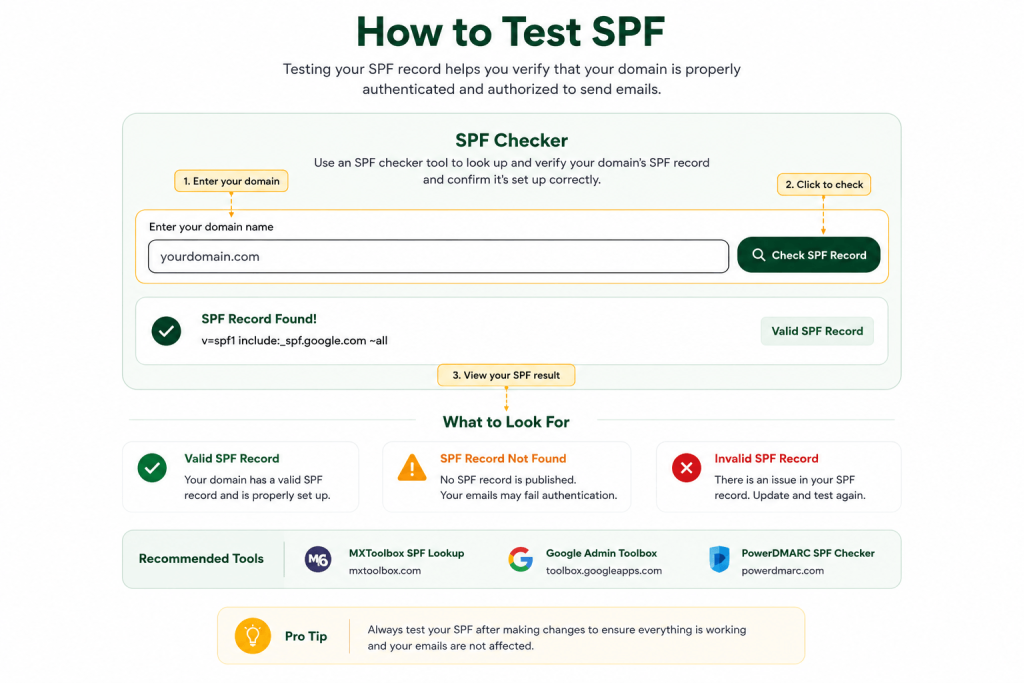
SPF Checker Tools
An SPF checker validates:
- Syntax
- DNS visibility
- Lookup count
- Authorized senders
You can test your domain using:
It helps identify:
- Missing providers
- Lookup problems
- Formatting errors
Best Practices for SPF Setup
SPF should be configured carefully to avoid authentication failures.
Keep SPF Records Simple
Avoid:
- Excessive includes
- Unnecessary providers
- Complex nested records
Simpler SPF records are easier to manage.
Monitor Your Sending Services
Regularly review:
- Marketing tools
- CRM systems
- Transactional email providers
Remove providers you no longer use.
Combine SPF with DKIM and DMARC
SPF alone is not enough.
For best results, combine SPF with:
- DKIM
- DMARC
This creates stronger email authentication and better deliverability.
You can verify all authentication methods using:
FAQs
Can I Have Multiple SPF Records?
No.
A domain should only have one SPF record. Multiple SPF records cause SPF failures.
What Happens if SPF Fails?
If SPF fails:
- Emails may go to spam
- DMARC may fail
- Messages may be rejected
This depends on mailbox provider policies and DMARC settings.
Is SPF Enough for Email Security?
No.
SPF should always be combined with:
- DKIM
- DMARC
for full email authentication protection.
Final Thoughts
SPF is one of the most important foundations of email authentication. It helps authorize sending servers, reduce spoofing, and improve email deliverability.
However, SPF works best when combined with DKIM and DMARC for complete domain protection.
If you want to create or test your SPF records, use the free tools from LeadCanal:
If your organization needs help with:
- SPF configuration
- DMARC implementation
- Cold email infrastructure
- Deliverability optimization
- Authentication troubleshooting
you can contact LeadCanal for professional support.