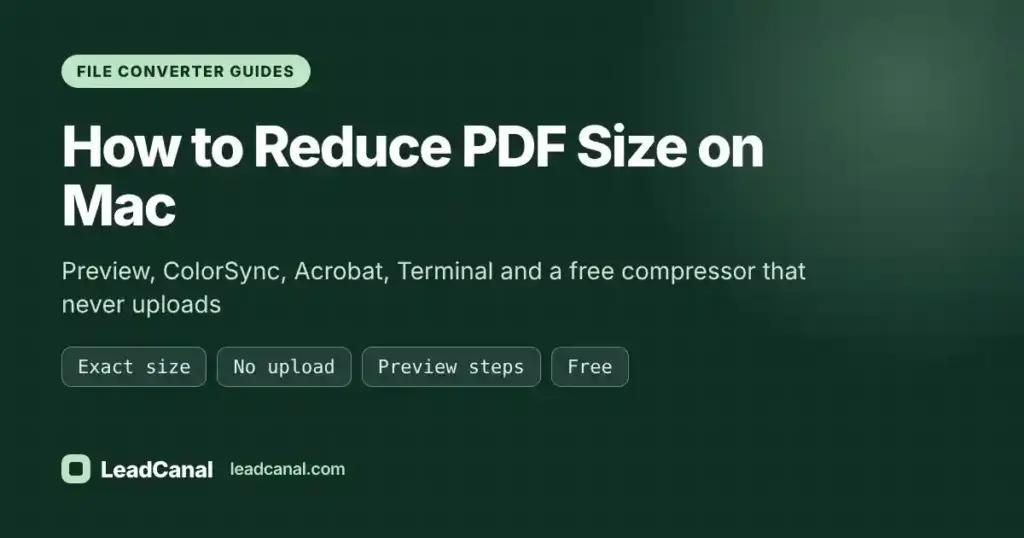
How to Reduce PDF Size on Mac: Preview, ColorSync and a Free No-Upload Compressor
How to reduce PDF size on Mac: free Preview and ColorSync steps, Acrobat and Terminal options, plus a no-upload compressor that hits an exact size.
On this page
- Why is your PDF so large in the first place?
- How to reduce PDF size on Mac to an exact size (free, no upload)
- How to reduce PDF size on Mac with Preview
- How to make a custom Quartz filter for better quality
- Other ways to shrink a PDF on a Mac
- Which way to shrink a PDF on a Mac is best?
- What size should you aim for?
- A worked example: an 18MB scan that had to fit under 2MB
- Troubleshooting: why won’t my PDF get smaller?
- Frequently asked questions
- Conclusion: key takeaways
- Editorial policy
- Content transparency
- About the author
Here is how to reduce PDF size on Mac in under a minute: open our free PDF compressor in Safari or Chrome, choose the size you need (from 50KB up to 2MB), and download the smaller file. It runs in your browser, so nothing is uploaded. If you prefer built-in apps, Preview can shrink a PDF through File > Export and the Reduce File Size Quartz filter, but you cannot pick an exact target size.
We handle client PDFs on our Macs every day: scanned contracts, signed agreements and lead reports. Most arrive too large for an email or upload form. Below is every method we use, what each does to quality, and what to do when a file refuses to shrink.
Quick answer: The fastest ways to make a PDF smaller on a Mac:
- Exact size, no upload: Open the free PDF size reducer, pick a target such as 300KB or 1MB, and download.
- Preview: File > Export, set Quartz Filter to Reduce File Size, then save as a new copy.
- Better quality in Preview: build a custom filter in ColorSync Utility with 150 dpi images.
- Acrobat Pro: File > Save As Other > Reduced Size PDF.
- Terminal: Ghostscript with -dPDFSETTINGS=/ebook keeps text selectable.
Free LeadCanal tools for this guide
Check and fix it yourself in a few seconds, no signup needed.
Compress PDF to 300KB →Color PDF to Black and White →Combine JPG to PDF →ODT to PDF →
Why is your PDF so large in the first place?
A PDF is only as heavy as what is inside it. Text exported from Pages, Word or Google Docs takes very little space. Images are what make a file big.
- Scans and phone photos: each page is a full image, often captured at 300 dpi or more in colour.
- Embedded photos: a brochure with ten camera photos can easily pass 20MB.
- Fonts and edit history: embedded fonts and leftover edited objects add weight.
So the real job is shrinking the images. Text-only PDFs rarely get much smaller, and that is normal. A scanned PDF can often drop by 80% or more.
How to reduce PDF size on Mac to an exact size (free, no upload)
Preview cannot aim for a number, and that is exactly what upload forms ask for: “under 2MB”, “maximum 300KB”. We built the LeadCanal compress PDF to 300KB tool for this. Despite the name, it has presets for 50KB, 100KB, 150KB, 200KB, 300KB, 500KB, 1MB and 2MB, plus a custom size.
- Open the compressor page in Safari, Chrome or Firefox on your Mac.
- Click Choose a PDF or drag the file from Finder onto the drop area. The tool checks it is a real PDF before opening it.
- Pick your target size. For a safety margin, use a custom value slightly below the limit, such as 1900KB for a 2MB cap.
- Tick Convert to grayscale if colour does not matter. It helps a lot at small targets.
- Click Compress PDF. The tool starts at 150 dpi and steps the quality down, up to six attempts, until the file fits.
- Download the result. The file name ends with your target, for example contract-300kb.pdf, and your original is not changed.
If the PDF is already under your target, the tool says so. If it cannot quite get there, it shows the smallest size it reached and suggests grayscale or fewer pages.
One trade-off to know: to hit small sizes reliably, each page is redrawn as an image, so text in the compressed file is no longer selectable or searchable. For upload forms and email that rarely matters. Keep the original for editing.
Why the no-upload part matters for PDFs
Most online compressors upload your file to their server. The PDFs people shrink are usually the sensitive ones: passports, bank statements, tax forms, payslips, signed contracts. Our compressor works entirely inside your browser on your Mac. The file is never uploaded and nothing is stored, so you are not trusting a third party with the document. Close the tab and it is gone.
How to reduce PDF size on Mac with Preview
Preview comes with every Mac and costs nothing. It works best on scanned files and photo-heavy PDFs. These steps follow Apple’s own Preview guide.
- Double-click the PDF so it opens in Preview.
- Choose File > Export (not Export as PDF, which has fewer options).
- Open the Quartz Filter pop-up menu and choose Reduce File Size.
- Change the name in the Export As field, for example add “-small”, so you keep the original.
- Click Save and check the new size in Finder with Get Info (Command-I).
On recent macOS versions, the Export dialog also offers checkboxes such as Optimize images for screen and Save images as JPEG, which give you a little more control than the single filter.
Why does Preview make my PDF blurry or bigger?
The built-in Reduce File Size filter is aggressive. It scales images down hard and compresses them heavily, so scanned text can become fuzzy or hard to read. On a PDF that is mostly text, the filter can even produce a slightly larger file, because there are no big images to shrink and the file gets rewritten. If that happens, use a custom filter or the target-size tool instead.
How to make a custom Quartz filter for better quality
ColorSync Utility, which ships with macOS, lets you copy the Reduce File Size filter and soften it. Once saved, your filter appears in Preview’s Quartz Filter menu.
- Open Applications > Utilities > ColorSync Utility.
- Click the Filters tab and find Reduce File Size.
- Click the arrow button on the right of that row and choose Duplicate Filter.
- Rename the copy, for example “Reduce 150 dpi”.
- Expand it and edit Image Sampling: set a resolution of 150 pixels/inch instead of a fixed scale.
- Under Image Compression, choose JPEG and drag the quality slider closer to High.
- Quit ColorSync Utility, reopen Preview, and pick your new filter in File > Export.
In our experience, 150 dpi with medium-high JPEG quality keeps scanned pages readable while still cutting size a lot. Make a second filter at 100 dpi for smaller files.
Other ways to shrink a PDF on a Mac
Export smaller from Pages, Keynote or Word
If you created the document yourself, export it small rather than compressing later. In Pages and Keynote, choose File > Export To > PDF and set Image Quality to Good or Better instead of Best. Word for Mac gives a similar choice between a file for printing and one for electronic distribution when you save as PDF.
Use Adobe Acrobat Pro
With a paid Acrobat Pro subscription, choose File > Save As Other > Reduced Size PDF for a quick result, or use the PDF Optimizer for control over image resolution, fonts and leftover data. Adobe explains the options in its PDF optimization guide. Acrobat keeps text as real text, which is its main advantage. The free Acrobat Reader cannot compress files.
Use the Shortcuts app
The Shortcuts app on macOS has an Optimize File Size of PDF action. Build a shortcut that takes a PDF from Finder, runs that action and saves the result, and you get a right-click compressor. Like Preview, it does not let you set a target size.
Use Ghostscript in Terminal
For batches, we use Ghostscript, a free command-line tool. Install it with Homebrew (brew install ghostscript), then run:
gs -sDEVICE=pdfwrite -dCompatibilityLevel=1.4 -dPDFSETTINGS=/ebook -dNOPAUSE -dQUIET -dBATCH -sOutputFile=smaller.pdf original.pdf
The /ebook preset targets about 150 dpi images. Use /screen (about 72 dpi) for the smallest files or /printer (about 300 dpi) for print quality. The Ghostscript documentation lists every setting. Ghostscript keeps text selectable, but it cannot hit an exact size either.
Which way to shrink a PDF on a Mac is best?
| Method | Cost | Upload needed? | Exact target size? | Text stays selectable? | Best for |
|---|---|---|---|---|---|
| LeadCanal compressor | Free | No, runs in browser | Yes, 50KB to 2MB or custom | No | Upload forms, email limits, private documents |
| Preview, Reduce File Size | Free, built in | No | No | Yes | Quick one-off shrink of scans |
| Preview with custom ColorSync filter | Free, built in | No | No | Yes | Better-looking scans |
| Pages, Keynote, Word export | Free with the app | No | No | Yes | Documents you created yourself |
| Adobe Acrobat Pro | Paid subscription | No (desktop app) | No | Yes | Fine control, professional files |
| Ghostscript in Terminal | Free | No | No | Yes | Batches of many PDFs |
What size should you aim for?
Before you decide how to reduce PDF size on Mac, check where the file is going. Pick the target from the destination, not from how small you can make it.
| Destination | Typical limit | Target to choose | Tip |
|---|---|---|---|
| Government, exam and visa forms | 100KB to 500KB | Just under the stated limit | Grayscale and fewer pages help most |
| Job portals | 300KB to 2MB | 1MB | Keep a CV as a text PDF if possible |
| Gmail attachment | 25MB total per email | 2MB per file | Smaller files open faster on phones |
| Client email in general | Varies by mail server | 1MB to 2MB | Mail Drop in Apple Mail handles very large files |
Watch the KB difference: macOS Finder counts 1KB as 1,000 bytes, while many portals count 1,024. Aim about 5% under any limit and the upload passes either way. Our 100KB guide explains this in more detail: how to get a PDF under 100KB for strict forms.
A worked example: an 18MB scan that had to fit under 2MB
A typical job for us: a client scans a twelve-page signed agreement on an office copier, in colour, and the result is around 18MB. It needs to go into a vendor portal with a 2MB cap.
- We tried Preview’s Reduce File Size first. The file got small, but the signatures and fine print were too soft to accept.
- We ran the original through the target-size compressor with a custom target of 1900KB, colour kept.
- The tool stepped down from 150 dpi and stopped at the first level under the target, which kept the text clear.
- We zoomed in on the signature page in Preview to check it was readable, then uploaded it.
Because the pages were black ink on white paper, grayscale would have been the next step if colour had not fitted. For colour scans like this, our colour to black and white PDF converter is another way to drop size before compressing.
Troubleshooting: why won’t my PDF get smaller?
- The file barely changes: it is probably text and vector graphics, which are already compact. Try Ghostscript with /screen, or remove pages you do not need.
- Preview made it bigger: the Reduce File Size filter can do this on text-heavy PDFs. Discard the copy and use the original.
- Text looks blurry: the images were scaled too far. Use a 150 dpi custom filter or a larger target size.
- Still over the limit: turn on grayscale, then delete unneeded pages in Preview (View > Thumbnails, select the page, press Delete) and compress again.
- Password-protected PDF: our tool asks for the password before it can open the file. Preview also needs it to export.
- Photos from iPhone are huge: if you are building a PDF from photos, shrink them first. Our JPG to PDF combiner has a smaller-file quality setting, and the guide on combining JPG files into one PDF covers page order and sizing.
- Upload still rejected at the right size: the portal may count KB differently. Re-run with a target 5% lower.
Frequently asked questions
How to reduce PDF size on Mac for free?
Use Preview’s Reduce File Size Quartz filter, a custom ColorSync filter, or the free LeadCanal compressor in your browser. All three are free; only the compressor lets you pick an exact size.
Can I reduce PDF size on Mac without losing quality?
Some loss is unavoidable when images are compressed. Choosing 150 dpi and medium-high JPEG quality keeps text sharp on screen, and removing unneeded pages costs no quality at all.
How do I compress a PDF to 1MB on a Mac?
Open the LeadCanal compressor, choose the 1MB preset, and download. Preview cannot target a size, so you would have to try filters until one fits.
Does Preview work on a MacBook Air and MacBook Pro the same way?
Yes. Preview is the same app on every Mac running macOS, so File > Export and the Quartz filters work identically.
How do I make a PDF smaller to email from my Mac?
Compress it to 1MB or 2MB with the browser tool or Preview. For very large files, Apple Mail can send them with Mail Drop as a download link instead of an attachment.
Is it safe to compress a bank statement online?
Upload-based sites receive a copy of your file. Our compressor runs inside your browser, so the statement never leaves your Mac.
Conclusion: key takeaways
Knowing how to reduce PDF size on Mac comes down to picking the right tool for the destination: Preview for quick shrinks, a target-size compressor when a form or inbox sets a limit.
- Use a target-size compressor when a form or inbox gives you an exact limit.
- Preview’s Reduce File Size filter is free but can blur scans or enlarge text PDFs.
- A custom 150 dpi ColorSync filter gives Preview much better quality.
- Grayscale and fewer pages cut size more than any compression setting.
- Aim about 5% under the limit because portals count KB differently.
- Keep private PDFs on your Mac with a tool that never uploads the file.
Ready to shrink yours? Try the free PDF compressor, or browse all our free file tools.
Key takeaways
How to reduce PDF size on Mac
| 1 | Use a target-size compressor when a form or inbox gives you an exact limit. |
| 2 | Preview's Reduce File Size filter is free but can blur scans or enlarge text PDFs. |
| 3 | A custom 150 dpi ColorSync filter gives Preview much better quality. |
| 4 | Grayscale and fewer pages cut size more than any compression setting. |
| 5 | Aim about 5% under the limit because portals count KB differently. |
| 6 | Keep private PDFs on your Mac with a tool that never uploads the file. |
Editorial policy
We write these guides from the work we do every day. Each method is checked against current software and official documentation before we publish, and we update the steps when menus change. We do not accept payment to include or rank tools, and we only describe features we have checked ourselves.
Content transparency
This guide was researched with keyword data on what Mac users search for and checked against official documentation from Apple, Adobe and Ghostscript. LeadCanal built and offers the free PDF compressor and the other converters mentioned here. The limits we describe, such as image-based output, reflect how the tools work today.
About the author
This guide was written by the LeadCanal team. We build verified B2B contact lists and run cold email infrastructure every day, which means handling client files constantly: CSV lead lists, VCF contacts and PDF reports. We built our free browser converters to fix the file problems we kept running into ourselves.