How Do I Check My List of Email Accounts and Mail? 2026 Guide
On this page
- Quick Answer:
- Table of Contents
- First, Decide What You Are Trying to Check
- How Do I Check Multiple Email Accounts in Gmail?
- Important: Gmail “Check Mail From Other Accounts” Has Changed in 2026
- How Do I Check All My Email Accounts in Outlook?
- How to Check Multiple Email Accounts With Apple Mail
- How Can I Find All Gmail Accounts I Created?
- Can I Find a Gmail Account by Phone Number Without Knowing the Email?
- Can I See Every Website Account Linked to My Email?
- What If “Check My Email List” Means Checking a Marketing or B2B List?
- What Does Checking an Email List Actually Mean?
- Do Not Confuse Email Verification With Checking Your Inbox
- How Should Businesses Check a Large Email List?
- Checking Email Accounts Is Not the Same as Checking Email Deliverability
- Common Mistakes When Checking Multiple Email Accounts
- Conclusion: Use the Right “Email Check” for the Right Problem
How Can I Check My List of Email Accounts and Mail?
Quick Answer:
If you want to check mail from several email accounts, add those accounts to an email app that supports multiple inboxes.
The Gmail mobile app can display messages from multiple added accounts under “All inboxes,” Outlook for iOS and Android offers a unified inbox, and Apple Mail can manage multiple email accounts in one app.
If instead you are trying to find Gmail accounts you previously created, Google’s username-recovery page lets you search using a recovery email address or phone number.
And if by “check my list email accounts” you mean checking a list of customer or prospect email addresses before sending a campaign,
that is a different task: you need email-list verification and cleansing, not a unified inbox.
LeadCanal B2B list-building workflow includes contact research and verified business email data for outreach campaigns.
That distinction is important because all three searches can sound almost identical:
Check my emails → manage inboxes
Find my email accounts → account recovery
Check my email list → email verification
This guide covers all three.
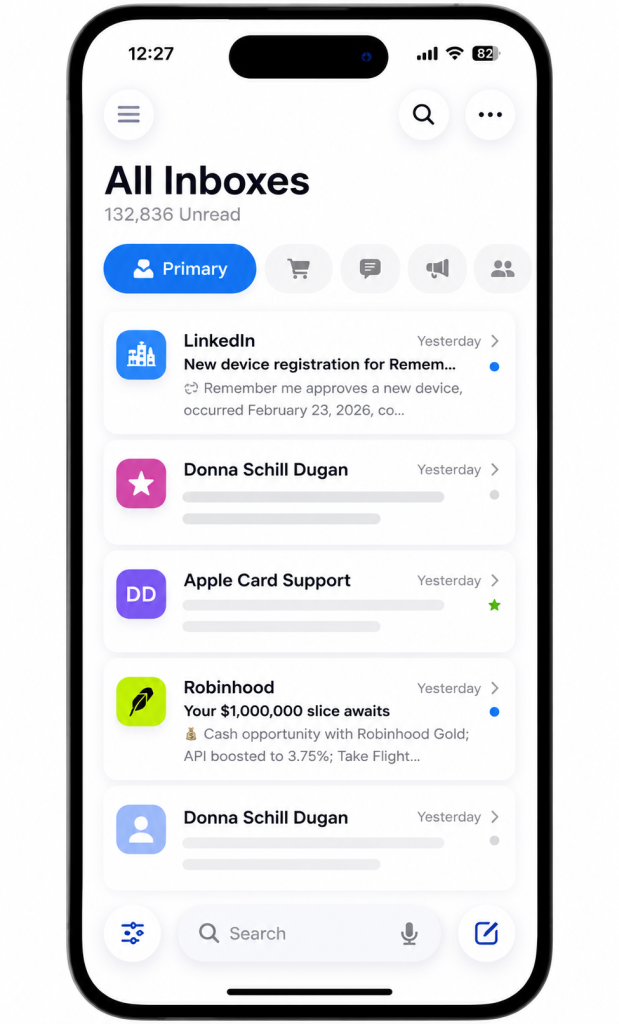
Table of Contents
- What Does “Check My List of Email Accounts” Mean?
- How to Check Multiple Email Accounts in Gmail
- Gmail’s Important 2026 POP Change
- How to Check Multiple Accounts in Outlook
- How to View Multiple Accounts in Apple Mail
- How to Find Gmail Accounts You Created
- Can You Find Every Account Linked to an Email?
- How to Check a List of Email Addresses for Business Outreach
- What Email Verification Actually Checks
- How to Organize Multiple Business Mailboxes
- Email Account Checking vs Email Deliverability
- How LeadCanal Fits Into Business Email Management
- Common Mistakes
- FAQs
- Conclusion
First, Decide What You Are Trying to Check
The phrase “how do I check my list email accounts mail” can describe several completely different problems.
Before following any instructions, identify yours.
| What You Want | Correct Method |
|---|---|
| Read several inboxes | Add accounts to one mail app |
| Find old Gmail addresses | Use Google account recovery |
| See Gmail + Outlook together | Use a compatible multi-account app |
| Check whether email addresses are valid | Use email verification |
| Clean a B2B prospect list | Verify, deduplicate and enrich data |
| Check whether your sending domain is configured | Test SPF, DKIM and DMARC |
This distinction also prevents a common search mistake.
An email account is a mailbox you log into.
An email address on a prospect list is simply a contact record.
You do not “log into” prospect emails to check them. Instead, businesses use verification processes to evaluate whether addresses appear usable before outreach.
How Do I Check Multiple Email Accounts in Gmail?
If you have several personal or business accounts, the Gmail mobile app provides one of the simplest options.
Google currently allows users to add Gmail addresses as well as third-party accounts such as Outlook, iCloud Mail and Yahoo to the Gmail app.
On Android
Open the Gmail app.
Tap your profile picture.
Choose Add another account.
Select the email provider.
Sign in and complete the security steps.
Repeat for your additional accounts.
Once several accounts have been added:
Gmail → Menu → All inboxes
will show emails from the accounts together. Google currently states that the Gmail app can contain up to five email addresses.
This approach is particularly useful if you have something like:
personal@gmail.com
work@company.com
sales@company.com
and want to avoid repeatedly logging out.
Important: Gmail “Check Mail From Other Accounts” Has Changed in 2026
This is where many existing articles and search snippets are now outdated.
Older instructions commonly tell users to open:
Gmail → Settings → Accounts and Import → Check mail from other accounts
and then connect another mailbox using POP.
That was historically a normal Gmail desktop workflow.
However, Google is now retiring this feature.
Google’s current documentation states that “Check mail from other accounts” through POP is being removed from Gmail on desktop. New users lost support after the first quarter of 2026, while existing users can continue using it until January 2027.
What Should New Users Do Instead?
Google currently recommends two main alternatives.
Option 1: Use Automatic Forwarding
Configure the other email provider to automatically forward new messages to the Gmail address you want to use as your primary inbox.
Option 2: Add Accounts to the Gmail Mobile App
The Gmail app continues to support additional accounts using standard mail connections, including third-party providers.
What About Old Imported Emails?
Google says emails that were already synchronized before the feature is fully retired remain in Gmail.
So if you see a guide telling every new Gmail user to set up POP-based Check mail from other accounts, check when that guide was updated.
How Do I Check All My Email Accounts in Outlook?
Outlook is another practical option when your email addresses come from different providers.
Microsoft’s current Outlook documentation supports adding additional accounts to the Outlook applications.
On Outlook for iOS and Android, Microsoft also provides a unified inbox.
After your accounts are connected:
- Open Outlook.
- Open the account/navigation menu.
- Select All Accounts.
- Outlook displays mail from your connected accounts together.
This can work well when your accounts include combinations such as:
Microsoft 365 + Outlook.com + Gmail + another work mailbox.
One important distinction is Outlook.com versus the Outlook app. Microsoft previously removed the ability to connect new third-party accounts directly inside Outlook.com, so users needing multi-provider management should pay attention to which Outlook product they are using.
How to Check Multiple Email Accounts With Apple Mail
Apple Mail also supports multiple email accounts.
On an iPhone or iPad, Apple’s current instructions are:
Settings → Apps → Mail → Mail Accounts → Add Account.
You can add accounts from common providers and then receive mail through the Mail app.
On Mac, Apple allows users to add accounts through:
Mail → Add Account
and provides an All Inboxes mailbox for viewing multiple inboxes together.
This makes Apple Mail useful when the objective is not transferring messages between providers but simply seeing several mailboxes from one interface.
How Can I Find All Gmail Accounts I Created?
This is a different search intent.
Maybe you do not remember the Gmail address itself.
For example:
“I know I created several Gmail accounts using my phone number, but I cannot remember their usernames.”
Google provides a Find your email recovery process.
It asks you to enter a:
phone number
or
recovery email address.
You then follow Google’s identity-verification process.
This can help recover usernames associated with recovery information you previously configured.
Can I Find a Gmail Account by Phone Number Without Knowing the Email?
Google’s official recovery process does accept a phone number or recovery email as the starting point.
However, you still need to complete Google’s account-verification process.
A phone number should therefore be viewed as a recovery identifier, not a public Gmail lookup tool.
Can I See Every Website Account Linked to My Email?
Not reliably from one universal list.
There is an important difference between:
email accounts you own
and
websites where you used an email address to register.
An email inbox might be used to create accounts with shopping sites, SaaS products, social networks, streaming services and hundreds of other websites.
Those registrations are not necessarily maintained in one universal directory.
Google Account settings can show services and applications connected through your Google account, but that should not be interpreted as a complete list of every website on which you have ever typed your Gmail address.
This distinction matters for privacy and security.
What If “Check My Email List” Means Checking a Marketing or B2B List?
Now we get to the second major search intent and the one most relevant to businesses.
Imagine you have a spreadsheet containing:
- 5,000 prospects;
- names;
- companies;
- job titles;
- email addresses.
You are not trying to read their inboxes.
You want to determine:
Which addresses should remain in my outreach database?
This is email-list verification and cleansing.
LeadCanal current Email List Building process focuses on identifying target companies and decision-makers, collecting contact information and preparing verified B2B email data for campaigns.
For this intent, a natural internal link is:
What Does Checking an Email List Actually Mean?
Email-list checking can involve several layers.
Syntax Checking
Does the address follow a valid structure?
For example:
john@company.com
versus obviously malformed data.
Domain Checking
Does the email’s domain exist and appear capable of handling mail?
Mail-System Validation
Verification systems may evaluate information associated with the receiving mail infrastructure.
Duplicate Removal
If one person appears five times in your spreadsheet, that should normally be identified before outreach.
Business Relevance
This is frequently overlooked.
A technically usable email can still be a poor lead.
For example:
- Valid email + wrong job title = poor prospect
- Valid email + wrong company = poor prospect
- Valid email + perfect ICP = potentially valuable prospect
LeadCanal own B2B lead-generation guidance separates verification from enrichment and ICP qualification, emphasizing that contacts should be relevant to the companies and people the sales team actually needs to reach.
So list quality should be considered as:
Validity + relevance + freshness + context
rather than validity alone.
Do Not Confuse Email Verification With Checking Your Inbox
These are completely different processes.
| Inbox Checking | Email List Verification |
|---|---|
| Reads messages you received | Evaluates contact records |
| Requires account access | Does not require inbox login |
| Gmail/Outlook/Apple Mail | Verification/data tools |
| Used by mailbox owners | Used by marketers/sales teams |
| Focuses on messages | Focuses on contact quality |
This comparison is important because the search phrase “check my list email accounts mail” can lead users to either type of solution.
How Should Businesses Check a Large Email List?
For business outreach, use a structured process rather than checking addresses manually one by one.
Start With the Source
Know where each contact came from.
Remove Duplicates
Repeated records create unnecessary outreach and poor CRM hygiene.
Confirm the Company
Make sure the business is still active and relevant.
Confirm the Person
Check whether the prospect still works at that company and still holds a relevant position.
Verify the Business Email
Perform the appropriate email-quality checks before campaign use.
Segment the List
Separate contacts by:
- industry;
- location;
- role;
- company size;
- campaign;
- ICP.
Record Verification Date
Business contact information changes.
A database checked recently is more useful than one whose freshness is unknown.
LeadCanal list-building and prospecting workflow combines targeted company selection with decision-maker research and verification rather than treating every discovered address as equally valuable.
Checking Email Accounts Is Not the Same as Checking Email Deliverability
Another important semantic distinction is:
Can I access this mailbox?
versus:
Will email sent from this mailbox reach other people’s inboxes?
The second issue is email deliverability.
LeadCanal current Email Deliverability Guide separates basic delivery from inbox placement and discusses factors including authentication, sender reputation, complaints and list quality.
For business mailboxes, technical checks can include:
- SPF;
- DKIM;
- DMARC;
- domain configuration;
- sender reputation;
- bounce behaviour.
LeadCanal also provides a Domain Scanner for checking SPF, DKIM and DMARC records associated with a sending domain.
This gives us another important distinction:
Email account check → Can I use the mailbox?
Email address verification → Is the prospect record usable?
Domain authentication check → Is my sending domain configured properly?
Deliverability check → Are messages reaching inboxes effectively?
These should not be treated as interchangeable.
A Practical Setup for Someone Managing Several Business Email Accounts
Imagine a small sales team has:
john@company.com
sales@company.com
outreach@company.com
and several separate outreach mailboxes.
Trying to log into every mailbox manually becomes inefficient.
A better structure is to separate mailbox management from campaign management.
Use an approved email application to access the accounts you genuinely need to read.
Then maintain prospect records and outbound campaigns separately.
For LeadCanal-style B2B outreach, the process can look like:
Target companies
- → Find decision-makers
- → Build verified email list
- → Configure sending infrastructure
- → Launch campaign
- → Monitor replies
LeadCanal Cold Email Outreach service currently combines prospect research, verified contact data and sending infrastructure within its outreach workflow.
Common Mistakes When Checking Multiple Email Accounts
Following Outdated Gmail POP Instructions
The biggest 2026 issue is assuming that every new user can still create a desktop POP connection through Check mail from other accounts.
Google is retiring that workflow, with new-user support already ended after Q1 2026.
Confusing “Add Account” With “Merge Accounts”
Adding several accounts to an app does not necessarily combine ownership, contacts, storage or account identities.
It usually gives you one interface through which to access them.
Assuming a Recovery Phone Reveals Everyone’s Gmail
Google’s phone/recovery-email flow is an account-recovery mechanism. It is not a public directory for looking up other people’s Gmail addresses.
Treating an Email Verifier Like Inbox Access
Email verification should never require you to access a prospect’s mailbox.
Assuming Verified Means Guaranteed Delivery
Even a technically usable recipient address does not guarantee inbox placement. LeadCanal deliverability guidance separately identifies authentication, reputation, complaints and list quality as important factors.

Frequently Asked Questions
How do I check all my email accounts in one place?
Add your email accounts to an application that supports multiple accounts or a unified inbox. Gmail mobile provides an All inboxes view, Outlook mobile supports a unified inbox, and Apple Mail supports multiple accounts.
How do I check multiple Gmail accounts?
On the Gmail mobile app, add each Gmail address through your profile menu and use All inboxes to view their messages together.
Does Gmail still have “Check mail from other accounts”?
Google is retiring the desktop POP-based feature. It stopped supporting new users after Q1 2026; existing users can continue until January 2027. Google recommends forwarding or adding accounts to the Gmail mobile app instead.
How do I find all Gmail accounts connected to my phone number?
Use Google’s Find your email recovery process and enter your phone number or recovery email, then complete the verification steps.
Can Outlook show multiple email accounts in one inbox?
Yes. Microsoft’s Outlook mobile apps provide an All Accounts unified inbox for connected accounts.
Can Apple Mail manage Gmail and Outlook accounts?
Apple Mail supports adding email accounts from common providers. On iPhone, accounts are added through Mail Accounts settings; Mac Mail also supports adding and managing multiple accounts.
How can I check whether a list of email addresses is valid?
For a marketing or B2B list, use email-verification and data-cleansing methods rather than attempting to log into addresses. Check duplicates, company relevance, contact freshness and address quality before sending.
Is checking an email list the same as checking email deliverability?
No. List verification concerns recipient-data quality. Deliverability concerns whether messages successfully reach recipients’ inboxes rather than being rejected or filtered.
Can LeadCanal help check and build business email lists?
LeadCanal’s current B2B services include prospect research, targeted email-list building and verified business email data for outbound campaigns.
Conclusion: Use the Right “Email Check” for the Right Problem
- If you searched “how do I check my list email accounts mail,” first decide what you actually need.
- If you own several mailboxes and want to read all your email, use a multi-account email client or unified inbox.
- If you forgot your Gmail usernames, use Google account recovery.
- If you have a spreadsheet of prospects and want to know which contacts are suitable for outreach, use email-list verification and cleansing.
And if you’re checking whether your business emails are configured to send reliably, review SPF, DKIM, DMARC and deliverability instead.
For businesses working with prospect data rather than personal inbox management, LeadCanal can support the next stage through targeted list building, verified B2B contacts and cold email outreach.
CTA
Have a B2B email list that needs to become outreach-ready? LeadCanal can help research the right prospects, verify business contact data and connect the finished list to a structured cold email campaign.