What Does Authentication Failed Mean on Email? Causes, Fixes & Prevention
On this page
- Direct Answer
- Email Authentication Failed: What It Means and How to Fix It
- Table of Contents
- Why Email Authentication Matters
- What Causes Authentication Failed Errors?
- How Email Authentication Works
- Step-by-Step: How to Fix Authentication Failed Errors
- SPF vs DKIM vs DMARC Comparison
- Pros and Cons of Email Authentication
- Real Business Example
- Best Practices
- Common Mistakes
- Frequently Asked Questions
- Conclusion
- Call to Action
What Does Authentication Failed Mean on Email?
Direct Answer
An “Authentication Failed” email error means that your email provider or mail server could not verify your identity or confirm that your email is authorized to send messages.
This usually happens because of incorrect login credentials, invalid SMTP settings, expired passwords, missing or incorrect SPF, DKIM, or DMARC records,
server configuration problems, or email security policies.
For businesses, authentication failures are more than just technical errors. They can reduce email deliverability, damage sender reputation, increase spam placement,
and even stop important emails from reaching customers. At LeadCanal, we regularly help businesses diagnose authentication problems, configure email authentication correctly,
and improve inbox placement for cold outreach and transactional emails.
Email Authentication Failed: What It Means and How to Fix It
An email authentication failed error means your email client, SMTP server, or email provider could not verify your login details or confirm that your email account is authorized to send messages.
This issue usually happens because of incorrect passwords, outdated SMTP settings, blocked sign-in attempts, missing app passwords, or domain authentication problems involving SPF, DKIM, and DMARC.
For businesses, email authentication failures can reduce deliverability, increase spam placement, and prevent important emails from reaching customers.
This guide explains the common causes, troubleshooting steps, and proven fixes for email authentication failed errors.
Table of Contents
- What Does Authentication Failed Mean on Email?
- Why Email Authentication Matters
- Common Reasons for Authentication Failed Errors
- How Email Authentication Works
- Step-by-Step Guide to Fix Authentication Failed
- SPF vs DKIM vs DMARC Comparison
- Pros and Cons of Email Authentication
- Real Business Example
- Best Practices
- Frequently Asked Questions
- Conclusion
Why Email Authentication Matters
Email authentication proves that an email was sent by an authorized sender rather than a spammer or cybercriminal.
Without proper authentication:
- Emails may land in spam folders.
- Customers may never receive invoices or notifications.
- Cold email campaigns perform poorly.
- Sender reputation declines.
- Domains become vulnerable to spoofing.
Modern providers like Gmail, Outlook, Microsoft 365, Yahoo, and Apple Mail heavily rely on authentication signals before deciding whether an email belongs in the inbox.
What Causes Authentication Failed Errors?
Several issues can trigger this error.
1. Incorrect Username or Password
The most common reason is entering an incorrect email address or password.
This often happens after:
- Password changes
- Password expiration
- Two-factor authentication updates
- Incorrect saved credentials
2. Wrong SMTP Settings
Your SMTP server authenticates outgoing emails.
Incorrect values for:
- SMTP Host
- Port Number
- SSL/TLS
- Authentication Method
can immediately trigger authentication failures.
3. Missing SPF Record
SPF (Sender Policy Framework) tells receiving mail servers which servers are allowed to send emails for your domain.
Without SPF:
- Servers cannot verify your sender.
- Deliverability decreases.
- Authentication may fail.
4. Invalid DKIM Signature
DKIM digitally signs every outgoing email.
If:
- the key is incorrect,
- DNS is misconfigured,
- or the signature is broken,
receiving servers cannot verify message authenticity.
5. DMARC Policy Issues
DMARC builds on SPF and DKIM.
If DMARC alignment fails, email providers may:
- Reject messages
- Quarantine emails
- Mark messages as spam
6. DNS Configuration Problems
Incorrect DNS records frequently cause authentication errors.
Examples include:
- Missing TXT records
- Duplicate SPF records
- Incorrect DKIM selectors
- DNS propagation delays
7. Third-Party Email Platforms
Businesses often use:
If these platforms aren’t properly authorized inside your DNS, authentication failures become common.
How Email Authentication Works
Email authentication follows a verification process before an email reaches the recipient.
Step 1
The sender sends an email.
↓
Step 2
The receiving server checks SPF.
↓
Step 3
The server verifies the DKIM signature.
↓
Step 4
DMARC checks whether SPF or DKIM aligns with the sending domain.
↓
Step 5
The email is delivered, quarantined, or rejected.
Every successful email passes through these security checks within seconds.
Step-by-Step: How to Fix Authentication Failed Errors
Step 1: Verify Your Login Credentials
Double-check:
- Email address
- Password
- App passwords
- Two-factor authentication
Step 2: Check SMTP Configuration
Verify:
- SMTP Host
- Port
- Encryption
- Authentication enabled
Incorrect SMTP settings are responsible for many authentication issues.
Step 3: Validate SPF Record
Ensure only authorized mail servers are included.
Avoid:
- Multiple SPF records
- Syntax errors
- Exceeding DNS lookup limits
Step 4: Verify DKIM
Check:
- DNS selector
- Public key
- Signature validation
Step 5: Configure DMARC Properly
Start with monitoring mode.
Example:
v=DMARC1; p=none;
After monitoring, move gradually to stronger enforcement.
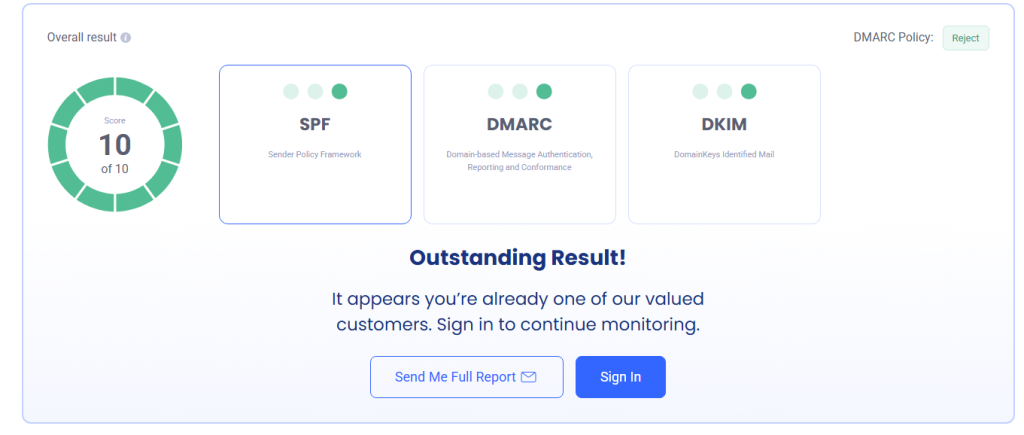
Step 6: Test Your DNS Records
Use email authentication testing tools to confirm:
- SPF passes
- DKIM passes
- DMARC passes
before sending campaigns.
Step 7: Send Test Emails
Always test emails before launching campaigns.
Review authentication headers and ensure every check passes successfully.
SPF vs DKIM vs DMARC Comparison
| Feature | SPF | DKIM | DMARC |
|---|---|---|---|
| Prevents spoofing | Yes | Yes | Yes |
| Uses DNS | Yes | Yes | Yes |
| Verifies sender | Yes | Yes | Yes |
| Digital signature | No | Yes | No |
| Policy enforcement | No | No | Yes |
| Improves deliverability | Yes | Yes | Yes |
Pros and Cons of Email Authentication
Pros
- Better inbox placement
- Higher email deliverability
- Stronger sender reputation
- Reduced phishing attacks
- Improved customer trust
- Better cold email performance
- Increased domain security
Cons
- Initial DNS setup requires technical knowledge
- Incorrect configurations can block legitimate emails
- Requires periodic monitoring
- DNS changes may take time to propagate
Real Business Example
A B2B software company contacted LeadCanal after noticing that nearly 70% of its cold emails were landing in spam.
After reviewing the domain, we discovered:
- Missing DKIM
- Weak SPF configuration
- No DMARC policy
- Incorrect SMTP authentication
We implemented proper authentication, updated DNS records, verified alignment, and tested deliverability before relaunching campaigns.
Within weeks, inbox placement improved significantly, bounce rates decreased, and reply rates increased because receiving mail servers could now verify the legitimacy of the sender.
Best Practices
Businesses should always:
- Configure SPF correctly.
- Enable DKIM signing.
- Publish a DMARC policy.
- Monitor authentication reports.
- Use reputable email providers.
- Authenticate every sending domain.
- Warm up new domains before large campaigns.
- Monitor sender reputation regularly.
- Test authentication after every DNS change.
- Review email headers when troubleshooting.
Common Mistakes
Many businesses accidentally create authentication problems by:
- Publishing multiple SPF records
- Forgetting DKIM after changing providers
- Using incorrect SMTP ports
- Ignoring DMARC reports
- Sending from unauthorized servers
- Making DNS changes without testing
- Launching campaigns immediately after DNS updates
Avoiding these mistakes significantly improves email reliability.
Why Does Email Authentication Failed Error Occur?
The most common reason for email authentication failed errors is a mismatch between your email account settings and the requirements of your email provider.
Email systems verify credentials, SMTP settings, and domain authentication records before allowing messages to be sent.
Frequently Asked Questions
What does “Authentication Failed” mean in email?
It means the receiving mail server could not verify your identity or confirm that your email was authorized to send messages.
Can authentication failures cause emails to go to spam?
Yes. Failed authentication is one of the biggest reasons emails are filtered into spam folders.
Does Gmail require SPF and DKIM?
Yes. Gmail strongly recommends proper SPF and DKIM authentication and expects domains to follow modern email authentication standards.
Is DMARC required?
While not always mandatory, DMARC has become a best practice for protecting domains and improving deliverability.
Can incorrect SMTP settings cause authentication errors?
Absolutely. Incorrect SMTP hostnames, ports, encryption settings, or passwords frequently trigger authentication failures.
How long do DNS changes take?
Most DNS updates propagate within a few minutes to several hours, although some changes can take up to 48 hours.
How can I check if my email authentication is working?
You can review email headers, use authentication testing tools, and confirm that SPF, DKIM, and DMARC all pass successfully.
Can authentication improve cold email performance?
Yes. Proper authentication improves sender reputation, inbox placement, and overall campaign performance.
Conclusion
An “Authentication Failed” error indicates that an email server could not verify the sender’s identity or authorize the email for delivery.
Although the error may appear technical, resolving it usually involves checking login credentials, SMTP settings
DNS records, and email authentication protocols such as SPF, DKIM, and DMARC.
For business owners, proper email authentication is essential. It protects your domain from spoofing, improves inbox placement,
strengthens your sender reputation, and ensures important emails reach customers instead of spam folders.
Treat authentication as a core part of your email infrastructure rather than an optional security feature.
Call to Action
If your business is struggling with authentication failures, poor inbox placement, or low email deliverability
LeadCanal can help. Our team specializes in configuring SPF, DKIM, DMARC, DNS records, and email infrastructure for businesses that rely on outbound email.
With a properly authenticated setup, you can improve deliverability, protect your domain, and maximize the performance of every email campaign.