SPF, DKIM and DMARC Setup Database: Complete Email Authentication Guide
On this page
- Direct Answer
- Table of Contents
- What Is an SPF, DKIM and DMARC Setup Database?
- How SPF, DKIM and DMARC Work
- SPF vs DKIM vs DMARC Comparison
- Information to Collect Before Setup
- Step-by-Step SPF, DKIM and DMARC Setup Process
- Suggested Setup Database Template
- Common Setup Mistakes
- Pros and Limitations
- Practical Implementation Example
- Real Screenshot Recommendations
- Frequently Asked Questions
- Conclusion
- Build a Stronger Email Authentication System With LeadCanal
SPF, DKIM and DMARC Setup Database
Direct Answer
To set up SPF, DKIM and DMARC, identify every service that sends email from your domain, publish one SPF record authorizing those senders
enable DKIM signing through each provider, and add a DMARC policy at _dmarc.yourdomain.com.
The recommended setup order is:
- Create an inventory of all authorized sending platforms.
- Publish or update one SPF TXT record.
- Generate DKIM keys through each email provider.
- Add the provider’s DKIM record to DNS.
- Activate DKIM signing.
- Confirm that SPF and DKIM pass.
- Publish DMARC with a monitoring policy.
- Review authentication reports.
- Correct unauthorized or misaligned senders.
- Move gradually from
p=nonetop=quarantineorp=reject.
SPF authorizes sending systems, DKIM cryptographically signs messages, and DMARC checks whether SPF or DKIM aligns with the domain displayed in the visible From address.
Gmail recommends configuring SPF, DKIM and DMARC, while Yahoo requires bulk senders to authenticate with SPF and DKIM and publish a DMARC policy.
Table of Contents
- What is an SPF, DKIM and DMARC setup database?
- How SPF, DKIM and DMARC work
- SPF vs DKIM vs DMARC comparison
- Information to collect before setup
- Step-by-step authentication process
- DNS record examples
- Authentication and alignment testing
- Common setup mistakes
- Pros and limitations
- Practical implementation example
- Real screenshot recommendations
- Frequently asked questions
- Conclusion
- Call to action
What Is an SPF, DKIM and DMARC Setup Database?
An SPF, DKIM and DMARC setup database is a structured record of every platform authorized to send email for a company’s domains.
It may include:
- Sending domain
- Email service provider
- Sending purpose
- SPF authorization
- DKIM selector
- DKIM record status
- DMARC policy
- Report destination
- Alignment status
- Last verification date
- Responsible team member
This database helps prevent authentication errors when a business uses multiple platforms such as Google Workspace,
Microsoft 365, transactional email providers, CRMs, customer-support systems and cold-email infrastructure.
Without a central record, teams may accidentally delete an authorized sender from SPF,
publish duplicate SPF records, forget to enable DKIM, or move DMARC to enforcement before every legitimate sender is aligned.
How SPF, DKIM and DMARC Work
SPF, DKIM and DMARC perform related but different functions.
SPF
Sender Policy Framework, or SPF, publishes a list of servers authorized to send email for a domain.
When a receiving server gets a message, it checks whether the sending server is permitted by the SPF record associated with the envelope sender or Return-Path domain.
Microsoft explains that SPF, DKIM and DMARC work together and that SPF alone is not sufficient to prevent spoofing.
DKIM
DomainKeys Identified Mail, or DKIM, attaches a cryptographic signature to an outgoing email.
The sender signs the message using a private key. The recipient retrieves the corresponding public key from DNS and uses it to verify that the signed parts of the email were not changed after signing.
Yahoo describes DKIM as a method senders use to create a signature of email content.
DMARC
Domain-based Message Authentication, Reporting and Conformance, or DMARC, builds on SPF and DKIM.
DMARC checks whether the domain authenticated by SPF or DKIM aligns with the domain displayed in the message’s From header.
It also publishes instructions describing how receivers should treat messages that fail authentication.
Gmail states that a message must pass SPF or DKIM with an aligned domain to pass DMARC.
SPF vs DKIM vs DMARC Comparison
| Feature | SPF | DKIM | DMARC |
|---|---|---|---|
| Main purpose | Authorizes sending servers | Verifies message signature | Applies alignment and policy |
| Published in DNS | Yes | Yes | Yes |
| Typical record type | TXT | TXT or provider-specific CNAME | TXT |
| Checks IP authorization | Yes | No | Uses SPF result |
| Signs message content | No | Yes | Uses DKIM result |
| Protects visible From domain | Not by itself | Not by itself | Yes, through alignment |
| Generates reports | No | No | Yes |
| Policy options | Pass or fail mechanisms | Signature validation | None, quarantine or reject |
| Works alone against spoofing | Limited | Limited | Stronger when correctly enforced |
SPF and DKIM provide authentication signals. DMARC connects those signals to the domain the recipient sees.
Information to Collect Before Setup
Do not begin by copying a generic DNS record from another website.
First, identify every legitimate system that sends email using your domain.
Create a table containing:
| Sending source | Purpose | From domain | Return-Path domain | DKIM domain | Owner |
|---|---|---|---|---|---|
| Google Workspace | Employee email | example.com | example.com | example.com | IT |
| CRM platform | Sales sequences | example.com | Provider-specific | Provider-specific | Sales |
| Transactional service | Account alerts | notify.example.com | Provider-specific | notify.example.com | Product |
| Support platform | Customer support | support.example.com | Provider-specific | Provider-specific | Support |
Also check:
- Website contact forms
- Invoicing platforms
- Recruitment tools
- Marketing automation
- Webinar services
- Customer-success software
- Help-desk platforms
- E-commerce systems
- Cold-email tools
- Internal applications
Every active sender must either authenticate correctly or stop using the domain.
Step-by-Step SPF, DKIM and DMARC Setup Process
Step 1: Build the Sender Inventory
List all systems that send email for the domain.
For each one, record:
- Provider name
- Sending domain
- Envelope sender
- DKIM selector
- Expected sending volume
- Responsible person
- Authentication status
This inventory becomes the foundation of the setup database.
Step 2: Review Existing DNS Records
Search DNS for existing records containing:
v=spf1_domainkey_dmarc
Do not publish new records until you understand the existing configuration.
Changing authentication records without an audit can interrupt employee email,
transactional messages or customer-support communication.
Step 3: Configure SPF
A basic SPF record follows this structure:
v=spf1 include:authorized-provider.example -all
This is an illustrative format only. Use the exact authorization value supplied by your sending provider.
Important SPF rules include:
- Publish only one SPF record per domain.
- Combine authorized senders into that record.
- Do not create a separate SPF TXT record for every platform.
- Remove services that no longer send email.
- Monitor the SPF DNS-lookup limit.
- Use the provider’s official include statement.
A domain using multiple approved platforms might have a record conceptually similar to:
v=spf1 include:provider-one.example include:provider-two.example -all
Never publish these example provider names on a live domain.
Step 4: Configure DKIM
DKIM setup usually takes place inside the sending platform.
The provider generates:
- A selector
- A public DNS record
- A private signing key retained by the provider
A typical DKIM hostname may look like:
selector1._domainkey.example.com
A TXT-based value commonly begins with:
v=DKIM1; k=rsa; p=PUBLIC_KEY
Some providers use CNAME records instead of exposing the complete public key.
After adding the DNS record:
- Wait for DNS propagation.
- Return to the provider’s dashboard.
- Verify the record.
- Activate DKIM signing.
- Send a test message.
- Inspect the authentication result.
Microsoft notes that DKIM alone is not sufficient to prevent spoofing, which is why it should be used with SPF and DMARC.
Step 5: Verify SPF and DKIM
Before publishing an enforcement-level DMARC policy, confirm that legitimate messages pass SPF or DKIM.
Check the message headers for results similar to:
spf=passdkim=passdmarc=pass
A successful technical result does not automatically mean every sender is aligned. Check the authenticated domains as well.
Step 6: Publish a Monitoring DMARC Record
A basic monitoring record may look like:
v=DMARC1; p=none; rua=mailto:dmarc-reports@example.com
This example tells receiving systems not to request quarantine or rejection yet and asks them to send aggregate reports to the specified mailbox.
The record is published at:
_dmarc.example.com
A monitoring policy helps identify legitimate and unauthorized sending sources before enforcement begins.
Step 7: Review DMARC Reports
DMARC aggregate reports show which systems send email using the domain and whether SPF, DKIM and alignment pass.
Use the reports to identify:
- Unknown senders
- Legacy software
- Misconfigured platforms
- SPF failures
- DKIM failures
- Alignment failures
- Unexpected sending countries or networks
Do not move to strict enforcement until legitimate senders are accounted for.
Step 8: Move Toward Enforcement
Once authorized systems consistently pass DMARC, consider moving through these policies:
Monitoring
p=none
The receiver is asked to take no DMARC-specific enforcement action.
Quarantine
p=quarantine
Messages that fail may be treated as suspicious or placed in spam.
Reject
p=reject
Messages that fail may be rejected.
Google describes DMARC as the mechanism that tells receiving servers what to do with messages that fail SPF or DKIM authentication and alignment.
Enforcement should be gradual and based on real report data.
Suggested Setup Database Template
| Domain | Sender | SPF included | DKIM selector | DKIM active | DMARC aligned | Policy | Last tested |
|---|---|---|---|---|---|---|---|
| example.com | Google Workspace | Yes | Yes | Yes | none | 15 July 2026 | |
| example.com | CRM | Yes | crm1 | Yes | Yes | none | 15 July 2026 |
| notify.example.com | Transactional platform | Yes | tx1 | Yes | Yes | quarantine | 16 July 2026 |
This database should be updated whenever the organization:
- Adds a sending platform
- Removes a vendor
- Changes DNS providers
- Creates a new subdomain
- Rotates DKIM keys
- Changes DMARC policy
- Detects an authentication failure
Common Setup Mistakes
Publishing Multiple SPF Records
A domain should not have multiple competing SPF records. Consolidate all approved sources into one SPF policy.
Copying Generic DNS Values
SPF includes and DKIM keys are provider-specific. Generic examples cannot replace records issued by the actual email service.
Adding DKIM Without Activating Signing
Publishing the DNS key is only part of the setup. The provider must also sign outgoing messages.
Confusing SPF Pass With DMARC Pass
SPF may pass for the Return-Path domain while failing DMARC alignment with the visible From domain.
Moving Directly to p=reject
Immediate enforcement can block legitimate email when undiscovered sending platforms are still unauthenticated.
Ignoring Subdomains
Subdomains may have separate sending infrastructure, authentication requirements and DMARC behavior.
Forgetting Third-Party Platforms
CRMs, support tools, billing systems and website applications frequently send on behalf of a company.
Never Reviewing Reports
A DMARC record with reporting configured provides limited value if no one examines the data.
Pros and Limitations
Advantages
- Reduces direct domain spoofing
- Improves trust signals for mailbox providers
- Provides visibility into domain usage
- Helps protect employees and customers
- Supports modern sender requirements
- Makes authentication easier to audit
- Improves control over third-party senders
- Supports stable email deliverability
Limitations
- Authentication does not guarantee inbox placement.
- SPF can break during some forwarding scenarios.
- DKIM can fail when signed message content is modified.
- DMARC reports require analysis.
- Strict enforcement can block legitimate mail when configured incorrectly.
- Large organizations may have difficulty identifying every sender.
- DNS changes require technical care and documentation.
Authentication is essential, but inbox placement also depends on reputation, complaint rates, message quality, recipient engagement and responsible sending behavior.
Practical Implementation Example
Consider a hypothetical B2B company using:
- Microsoft 365 for employee email
- A CRM for prospecting
- A support platform for customer replies
- A transactional provider for account notifications
The company initially has one SPF record for Microsoft 365 but no DKIM configuration for its CRM and no DMARC record.
Audit Findings
- Employee email passes SPF.
- CRM email uses a provider-controlled Return-Path.
- Support messages are DKIM signed but not aligned.
- Transactional email uses a separate subdomain.
- The visible From domain has no DMARC reporting.
Corrective Process
- All four systems are added to the authentication database.
- SPF is updated using official provider instructions.
- DKIM is activated for Microsoft 365, the CRM and support system.
- The transactional platform is moved to an authenticated subdomain.
- A DMARC monitoring record is published.
- Reports are reviewed for four weeks.
- Remaining alignment problems are corrected.
- The policy moves to quarantine.
- After further monitoring, the company considers rejection.
This is a hypothetical example, not a LeadCanal client-performance claim.
Real Screenshot Recommendations
Use original, anonymized screenshots to demonstrate practical experience.
Screenshot 1: DNS Authentication Records
Show the DNS management screen containing:
- SPF TXT record
- DKIM TXT or CNAME records
- DMARC TXT record
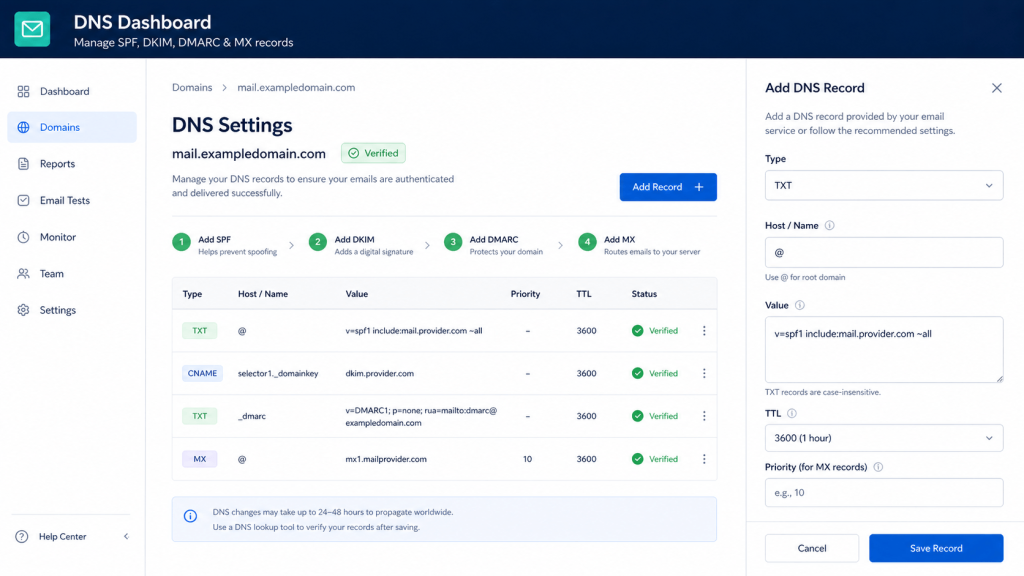
A complete authentication setup includes authorized sending sources, DKIM public keys and a DMARC policy.
DNS dashboard showing SPF, DKIM and DMARC email authentication records.
Hide unrelated records, account identifiers and confidential values.
Screenshot 2: Email Provider Authentication Status
Show a real provider dashboard confirming:
- SPF verified
- DKIM verified
- Domain authenticated
Publishing DNS records should be followed by provider verification and DKIM activation.
Email provider dashboard confirming domain and DKIM authentication.
Screenshot 3: Message Header Results
Show an anonymized test-email header containing:
spf=passdkim=passdmarc=pass
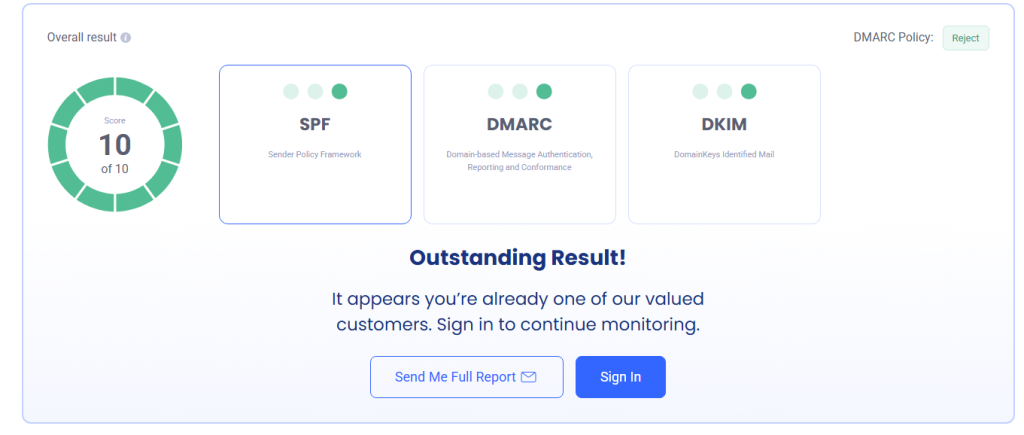
A test email confirms whether authentication and DMARC alignment are working.
Email header displaying successful SPF, DKIM and DMARC results.
Screenshot 4: DMARC Reporting Dashboard
Show:
- Message volume
- Sending sources
- Pass and fail rates
- Alignment status
DMARC reports reveal authorized, misconfigured and potentially abusive sending sources
DMARC dashboard showing authentication and alignment results by sending source.
Frequently Asked Questions
What are SPF, DKIM and DMARC?
SPF authorizes email servers, DKIM signs messages and DMARC checks alignment while publishing a handling policy for authentication failures.
Do I need all three records?
Using all three provides stronger protection and visibility than relying on only one method. Gmail recommends SPF, DKIM and DMARC, and Yahoo requires SPF, DKIM and a DMARC policy for bulk senders.
Can I publish more than one SPF record?
You should publish one SPF policy for a domain and include all approved sending services within that policy.
Where is a DKIM record published?
It is published beneath a selector at a hostname such as selector._domainkey.example.com.
Where is the DMARC record published?
It is normally published as a TXT record at _dmarc.example.com.
What does p=none mean?
It is a monitoring policy. It allows the domain owner to collect DMARC data without requesting quarantine or rejection based solely on DMARC.
Should I start with p=reject?
Not usually. First monitor reports and authenticate all legitimate senders. Moving too quickly can disrupt valid email.
What is DMARC alignment?
Alignment means that the domain authenticated by SPF or DKIM corresponds to the domain displayed in the From header according to DMARC rules.
Microsoft describes DMARC as checking alignment between authenticated and visible sender domains.
Does passing SPF, DKIM and DMARC guarantee inbox placement?
No. Authentication supports trust and compliance, but mailbox providers also evaluate reputation, complaints, recipient engagement and sending behavior.
How often should the setup database be reviewed?
Review it whenever a sending service is added or removed and conduct a scheduled audit at least several times per year.
Conclusion
SPF, DKIM and DMARC should be managed as a connected email-authentication system rather than three isolated DNS records.
SPF identifies approved sending infrastructure. DKIM verifies signed email. DMARC connects authentication to the visible From domain,
supplies reports and provides policy instructions for failures.
A structured setup database gives organizations a reliable way to document senders, selectors, records, alignment and policy status.
It also reduces the risk of breaking legitimate email when platforms, domains or vendors change.
The safest implementation process is to inventory senders,
configure SPF, activate DKIM, monitor DMARC reports and introduce enforcement only after legitimate traffic is aligned.
Build a Stronger Email Authentication System With LeadCanal
LeadCanal helps B2B organizations audit sending sources, document email infrastructure and improve the technical foundation of outbound email campaigns.
Contact LeadCanal for an SPF, DKIM and DMARC audit to identify missing records,
alignment failures and unauthorized sending sources before they damage your domain reputation or email deliverability.