DNS & Email Authentication for Cold Email the Complete SPF, DKIM, DMARC & MX Records Setup Guide
On this page
- What Is DNS?
- Why DNS Matters in Cold Email
- Understanding Email Authentication
- What Is SPF?
- Why SPF Matters
- Example SPF Record
- Common SPF Mistake: Multiple SPF Records
- Generate SPF Records Easily
- What Is DKIM?
- Why DKIM Is Important
- How DKIM Works
- Generate DKIM Records
- How to Enable DKIM in Google Workspace
- How to Enable DKIM in Microsoft 365
- What Is DMARC?
- Why DMARC Matters
- DMARC Policies Explained
- Example DMARC Record
- Generate DMARC Records
- Understanding DMARC Reports
- What Are MX Records?
- Example Google MX Records
- Example Microsoft MX Records
- Why MX Records Matter in Cold Email
- DNS Lookup & Troubleshooting
- Complete Domain Health Audits
- How to Verify Authentication Is Working
- Common DNS Mistakes Beginners Make
- The Cold Email Authentication Checklist
- Final Thoughts
Author: Muhammad Shahzad
If domains are the foundation of your cold email infrastructure, then DNS and Email Authentication are the security system protecting that foundation.
I often see beginners spend hundreds of dollars on:
and then wonder why their emails are landing in spam.
The reason is usually simple:
Their email authentication is broken.
Email providers like Gmail, Outlook, Yahoo, and Apple Mail have become much stricter over the past few years. They want proof that emails coming from your domain are legitimate.
Without proper authentication:
- Emails may land in spam
- Deliverability may decrease
- Mailboxes may lose reputation
- Campaign performance may suffer
- Domain trust may decline
This is why DNS configuration is one of the most important technical skills every cold email marketer should understand.
In this lesson, you will learn:
- What DNS is
- How email authentication works
- What SPF, DKIM, DMARC and MX records are
- Why these records matter
- How to generate and verify records
- How to avoid common DNS mistakes
- How to verify authentication
- How to troubleshoot problems
- How to use LeadCanal tools to simplify setup
By the end of this guide, you will understand the complete authentication system behind successful cold email campaigns.
What Is DNS?
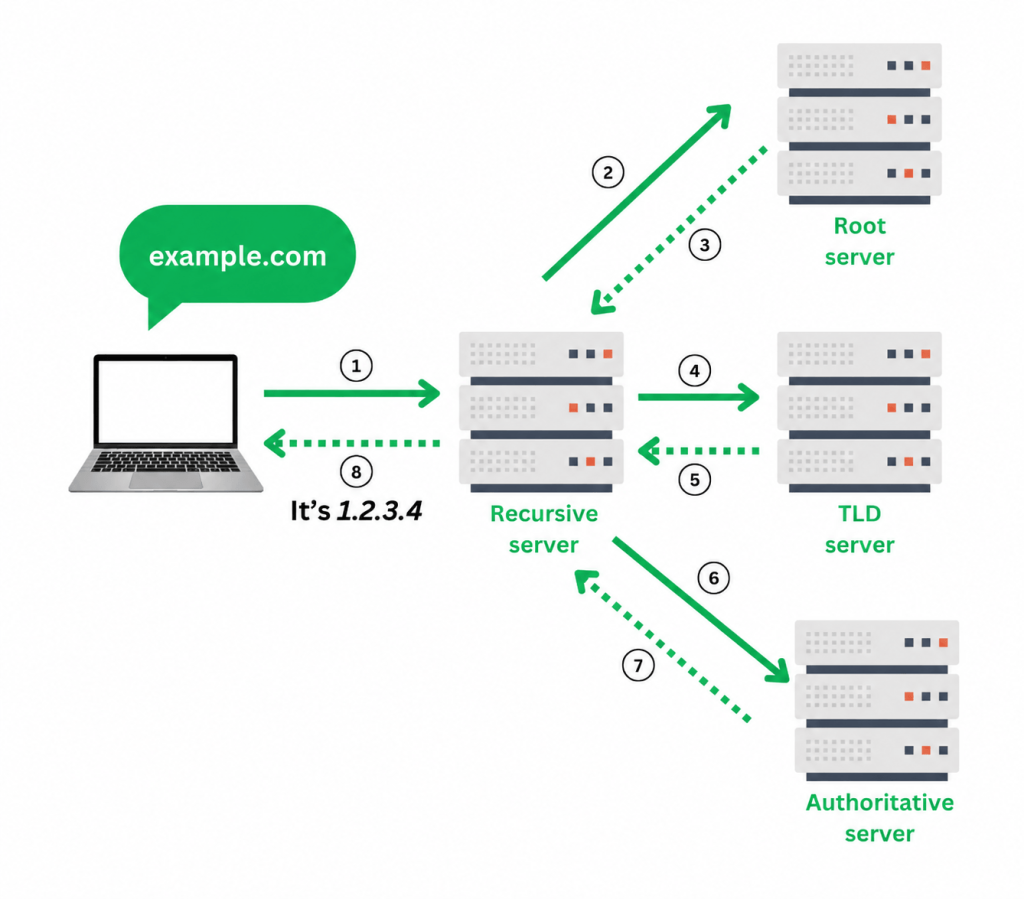
DNS stands for Domain Name System.
Think of DNS as the internet’s phone book.
When someone visits:
yourdomain.com
DNS tells the internet:
- Which server hosts the website
- Which server receives emails
- Which services can send emails
- Which security policies apply
Every email provider checks DNS records before deciding whether your email is trustworthy.
This is why proper DNS configuration is critical for cold email success.
Why DNS Matters in Cold Email
When Gmail receives an email from your domain, it immediately asks several questions:
- Is this sender legitimate?
- Is this domain authenticated?
- Is this email actually authorized?
- Can this domain be trusted?
The answers come from your DNS records.
If DNS records are missing or incorrect, Gmail becomes suspicious.
When that happens:
- Inbox placement decreases
- Spam placement increases
- Deliverability suffers
Professional cold email marketers always configure authentication before sending a single campaign.
Understanding Email Authentication
Modern email authentication relies on four major DNS components:
- SPF
- DKIM
- DMARC
- MX Records
Think of them as security checkpoints.
Each one verifies a different part of your email identity.
Together they help prove that your emails are legitimate.
What Is SPF?
SPF stands for Sender Policy Framework.
SPF tells email providers:
“These are the servers allowed to send emails on behalf of my domain.”
Without SPF, anyone could pretend to send emails from your domain.
Why SPF Matters
Imagine your domain is:
leadcanal.com
You send emails through:
SPF tells Gmail which servers are authorized.
Without SPF:
- Authentication fails
- Spam risk increases
- Deliverability decreases
Example SPF Record
A typical Google Workspace SPF record looks like:
v=spf1 include:_spf.google.com ~all
A Microsoft 365 SPF record may look like:
v=spf1 include:spf.protection.outlook.com ~all
This record tells receiving servers:
“Only approved Google or Microsoft servers may send emails for this domain.”
Common SPF Mistake: Multiple SPF Records
This is one of the most common cold email setup mistakes.
Wrong:
SPF Record #1
v=spf1 include:_spf.google.com ~all
SPF Record #2
v=spf1 include:spf.protection.outlook.com ~all
You can only have ONE SPF record.
Multiple SPF records cause SPF failures.
Instead, merge them:
v=spf1 include:_spf.google.com include:spf.protection.outlook.com ~all
Generate SPF Records Easily
Instead of manually building records, use the LeadCanal SPF Generator:
After adding your SPF record, verify it using:
This ensures your record is correctly configured.
What Is DKIM?
DKIM stands for DomainKeys Identified Mail.
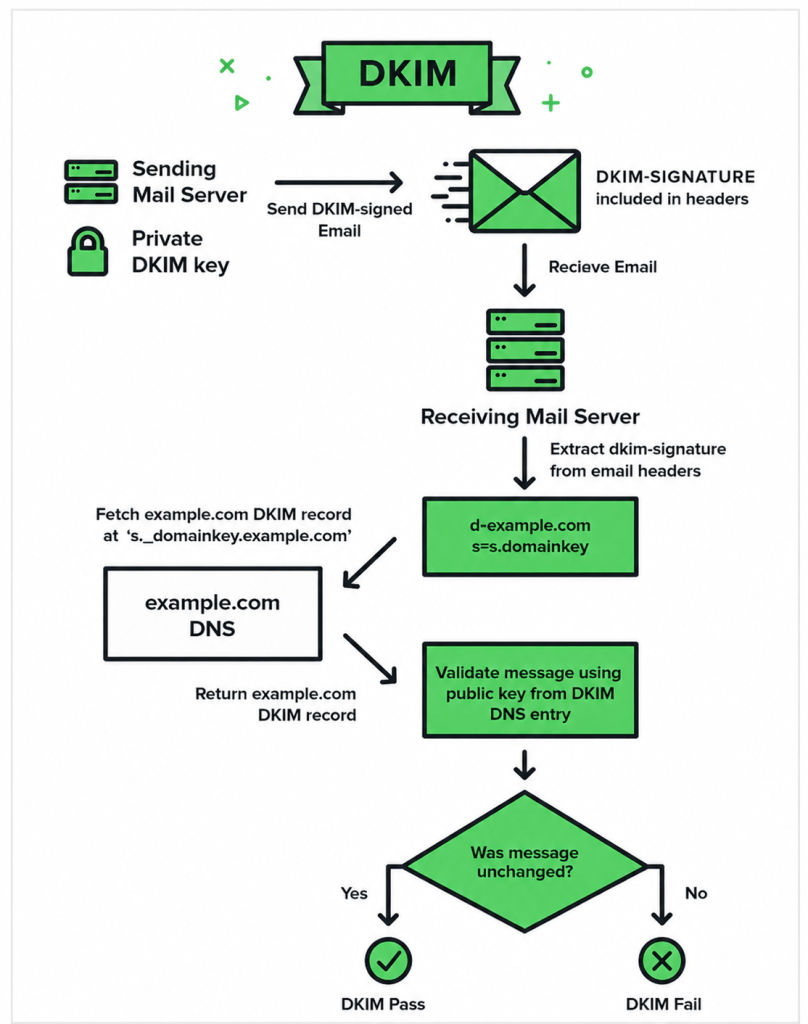
DKIM acts like a digital signature for every email you send.
Whenever an email leaves your mailbox, DKIM signs the message cryptographically.
The receiving server verifies that signature.
If the signature matches:
- Trust increases
- Authentication passes
- Inbox placement improves
Why DKIM Is Important
Without DKIM:
Email providers cannot verify whether the message was modified during transit.
With DKIM:
Providers can confirm:
- The email is authentic
- The content has not been altered
- The sender is legitimate
Google and Microsoft strongly recommend DKIM for all domains.
For cold email, DKIM is mandatory.
How DKIM Works
When you enable DKIM:
Your provider generates:
- Public Key
- Private Key
The public key gets published inside DNS.
The private key stays on the mail server.
Every outgoing email receives a signature.
Receiving servers compare signatures using the public key in DNS.
If everything matches:
DKIM passes.
Generate DKIM Records
You can generate DKIM records using:
After publishing the record, verify it with:
This confirms that your DKIM configuration is working properly.
How to Enable DKIM in Google Workspace
Inside Google Admin:
Apps → Google Workspace → Gmail → Authenticate Email
Google generates:
- Selector
- DKIM Record
Add the provided TXT record to DNS.
Wait for propagation.
Then click:
Start Authentication
Once active, Google will begin signing all outgoing emails.
How to Enable DKIM in Microsoft 365
Inside Microsoft Defender:
Email & Collaboration → Policies → DKIM
Microsoft provides:
- CNAME Records
Add them to DNS.
After propagation:
Enable DKIM
Microsoft will begin automatically signing outgoing emails.
What Is DMARC?
DMARC stands for:
Domain-based Message Authentication, Reporting and Conformance.
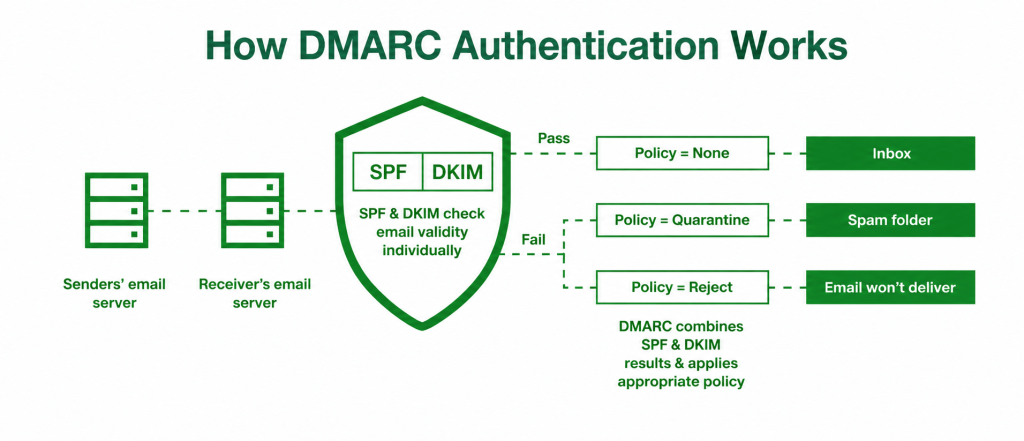
DMARC sits on top of SPF and DKIM.
Its job is to tell receiving servers what to do when authentication fails.
Think of DMARC as your email security manager.
Why DMARC Matters
Without DMARC:
Attackers can spoof your domain.
They can pretend to send emails from:
- support@yourdomain.com
- sales@yourdomain.com
even if the emails are fake.
and DMARC protects your brand.
DMARC Policies Explained
DMARC has three primary policies.
p=none
Monitor only.
Emails are not blocked.
Good for beginners.
p=quarantine
Suspicious emails go to spam.
Provides stronger protection.
p=reject
Unauthenticated emails are completely rejected.
Maximum protection.
Most mature cold email infrastructures eventually move toward reject.
Example DMARC Record
v=DMARC1; p=none; rua=mailto:reports@yourdomain.com
This tells providers:
- Monitor failures
- Send reports
- Do not block emails yet
Generate DMARC Records
Use the LeadCanal DMARC Generator:
After publishing your record, validate it using:
Understanding DMARC Reports
One of DMARC’s most powerful features is reporting.
Providers like:
- Gmail
- Microsoft
- Yahoo
can send daily XML reports showing:
- Authentication status
- SPF failures
- DKIM failures
- Spoofing attempts
- Sending sources
These reports help identify problems before they affect deliverability.
You can even provide these reports to clients as part of a deliverability audit service.
What Are MX Records?
MX stands for Mail Exchange.
MX records tell the internet:
“Where should incoming emails be delivered?”
Without MX records:
Your domain cannot properly receive emails.
Example Google MX Records
Google Workspace uses MX records pointing toward:
- ASPMX.L.GOOGLE.COM
- ALT1.ASPMX.L.GOOGLE.COM
- ALT2.ASPMX.L.GOOGLE.COM
These servers handle incoming mail delivery.
Example Microsoft MX Records
Microsoft 365 uses:
yourdomain-com.mail.protection.outlook.com
to receive incoming emails.
Why MX Records Matter in Cold Email
Even though cold email focuses on sending, incoming email still matters because:
- Replies need delivery
- Warmup systems need delivery
- Bounce handling needs delivery
- Inbox reputation depends on functionality
Every professional setup requires properly configured MX records.
DNS Lookup & Troubleshooting
Whenever you experience:
- Authentication failures
- Deliverability problems
- Missing records
- DNS issues
run a complete DNS audit.
Use:
This helps identify:
- Missing records
- Incorrect values
- Configuration issues
Complete Domain Health Audits
Before launching any campaign, perform a full domain scan.
Use:
This tool helps review:
- SPF
- DKIM
- DMARC
- MX
- General DNS configuration
This should be part of every deliverability checklist.
How to Verify Authentication Is Working
After setup, never assume authentication is correct.
Always verify.
Your checklist should include:
- SPF passes
- DKIM passes
- DMARC passes
- MX records exist
- DNS propagation completed
- Mailboxes receive emails Replies work correctly
- Domain scans show no major issues
Only after completing these checks should you begin warmup or outreach campaigns.
Common DNS Mistakes Beginners Make
Over the years, I have seen the same mistakes repeatedly.
The most common include:
- Multiple SPF records
- Missing DKIM records
- Invalid DMARC syntax
- Incorrect MX priorities
- Copy-paste mistakes
- DNS propagation impatience
- Publishing records in the wrong host field
Most deliverability issues originate from one of these mistakes.
The Cold Email Authentication Checklist
Before sending your first campaign, make sure:
- SPF configured
- DKIM enabled
- DMARC published
- MX records verified
- DNS lookup tested
- Domain scanner completed
- Authentication passing
- Warmup started
If all eight are complete, your infrastructure is ready for the next stage.
Final Thoughts
DNS and Email Authentication are the invisible foundation of successful cold email marketing.
Most prospects will never see your SPF, DKIM, DMARC, or MX records.
But Gmail, Outlook, Yahoo, and every receiving server absolutely will.
Proper authentication helps:
- Increase inbox placement
- Improve deliverability
- Protect your brand
- Prevent spoofing
- Scale outreach safely
Before worrying about:
- Subject lines
- Email copy
- Campaigns
- Automation
Make sure your authentication is configured correctly.