How to Set Up DMARC Step-by-Step for Your Domain
On this page
Email spoofing and phishing attacks continue to grow every year, and businesses of all sizes are becoming targets. Attackers often impersonate company domains to trick customers, employees,
and partners into sharing sensitive information or making fraudulent payments.
That’s why properly configuring DMARC has become essential for modern email security and deliverability.
In this guide, you’ll learn how to set up DMARC step-by-step, including:
- SPF configuration
- DKIM setup
- Creating DMARC records
- Publishing DNS entries
- Monitoring reports
- Avoiding common mistakes
You can also use the free tools from LeadCanal to generate and test your records:
Introduction
Why Setup Matters
DMARC helps protect your domain from:
- Email spoofing
- Phishing attacks
- Fake invoices
- Brand impersonation
Mailbox providers like Google Workspace, Microsoft 365, and Yahoo Mail use DMARC to verify whether emails should be trusted.
A properly configured DMARC setup can:
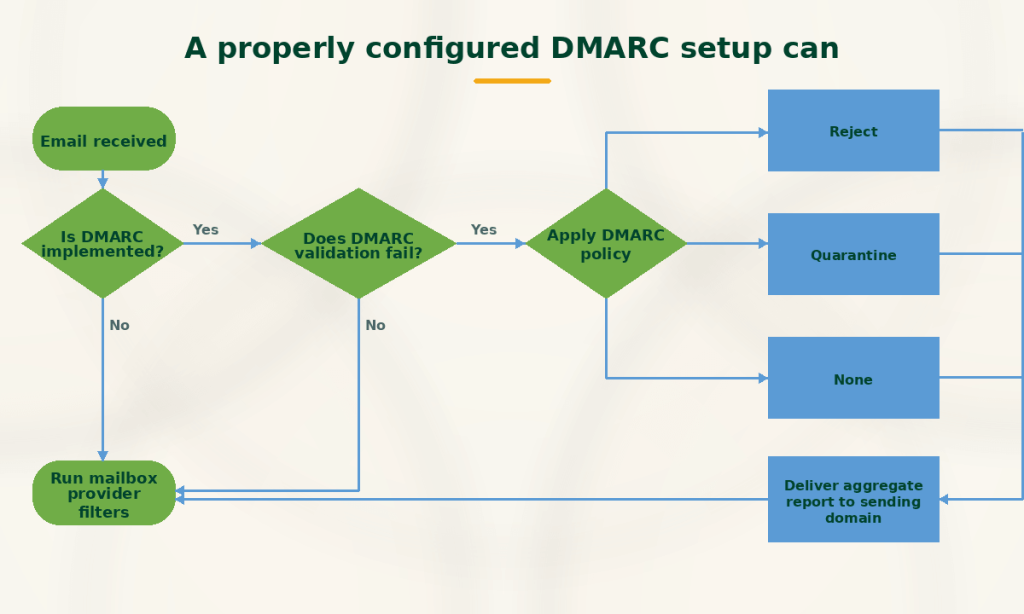
- Improve inbox placement
- Protect your sender reputation
- Increase email trust
- Reduce spam folder placement
For businesses running:
- Cold email campaigns
- Marketing automation
- SaaS notifications
- Transactional emails
DMARC is no longer optional.
Prerequisites Before DMARC
Before setting up DMARC, you must first configure SPF and DKIM correctly. DMARC relies on these two authentication methods to validate emails.
SPF Setup
SPF (Sender Policy Framework) tells receiving mail servers which systems are allowed to send emails on behalf of your domain.
Without SPF:
- Anyone can attempt to send emails pretending to be your domain
- Your emails may fail authentication
- Deliverability issues may occur
Example SPF record:
v=spf1 include:_spf.google.com ~allThis example authorizes Google Workspace servers to send emails for your domain.
When creating SPF records:
- Add all legitimate email providers
- Include marketing tools
- Include CRM systems
- Avoid duplicate SPF records
You can instantly create SPF records using the LeadCanal SPF Generator.
DKIM Setup
DKIM (DomainKeys Identified Mail) adds a digital signature to your outgoing emails.
This signature helps receiving servers verify:
- The message is authentic
- The content was not altered
- The sender is trusted
Most providers like:
allow DKIM setup inside their admin panels.
After enabling DKIM:
- Generate DKIM keys
- Add DNS records
- Enable email signing
You can verify your setup using the LeadCanal DKIM Checker.
Create a DMARC Record
Once SPF and DKIM are working properly, you can create your DMARC policy.
DNS TXT Format
DMARC records are added as TXT records in your DNS settings.
The hostname is always:
_dmarcBasic DMARC example:
v=DMARC1; p=none;This tells receiving servers:
- Use DMARC version 1
- Monitor emails only
- Do not block failed messages yet
Required Tags
A DMARC record contains different tags that define how email servers should handle your messages.
v=DMARC1
This defines the DMARC version and is mandatory.
p=
This defines the DMARC policy:
- none
- quarantine
- reject
rua=
Specifies where aggregate reports should be sent.
ruf=
Specifies where forensic reports should be sent.
Example:
v=DMARC1; p=none; rua=mailto:dmarc@example.comYou can generate ready-to-use DMARC records using the LeadCanal DMARC Generator.
Understanding DMARC Policies
DMARC policies determine how mailbox providers should handle emails that fail authentication.
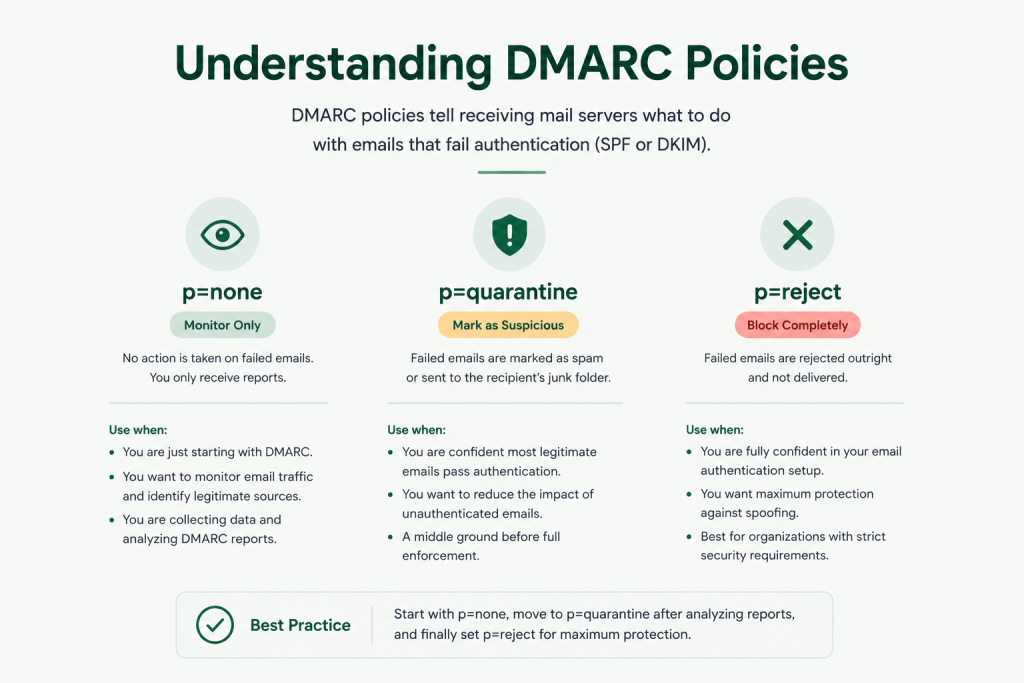
none
Example:
p=noneThis mode is used for monitoring only.
Emails that fail DMARC will still be delivered, but reports will be generated.
This is the safest way to begin implementation because:
- No emails are blocked
- You can monitor authentication
- You can identify configuration issues
quarantine
Example:
p=quarantineFailed emails are usually:
- Sent to spam folders
- Marked suspicious
This mode offers stronger protection while still reducing the risk of accidentally blocking legitimate emails.
reject
Example:
p=rejectThis is the strictest DMARC policy.
Failed emails are:
- Completely rejected
- Never delivered to inboxes
This provides maximum protection against spoofing attacks.
However, it should only be enabled after proper testing.
Adding Reporting Addresses
DMARC reports are extremely valuable because they show:
- Who is sending emails from your domain
- Authentication failures
- Alignment issues
- Unauthorized senders
rua
The rua tag receives aggregate reports.
Example:
rua=mailto:dmarc@example.comAggregate reports include:
- SPF pass/fail results
- DKIM pass/fail results
- Sending IP addresses
- Authentication statistics
These reports are usually sent daily in XML format.
ruf
The ruf tag receives forensic reports.
Example:
ruf=mailto:forensics@example.comForensic reports provide:
- Detailed failure information
- Copies of failed messages
- Authentication breakdowns
Not all providers send forensic reports due to privacy policies.
Publish DMARC in DNS
After creating your DMARC record, you must publish it in your DNS provider.
Popular DNS providers include:
Example Setup
Hostname
_dmarcTXT Value
v=DMARC1; p=none; rua=mailto:dmarc@example.comAfter saving the record:
- DNS propagation may take several hours
- Some providers update faster than others
Test Your DMARC Record
After publishing the record, always test it to ensure proper configuration.
DMARC Checker Tools
A DMARC checker helps validate:
- Syntax correctness
- DNS visibility
- Policy configuration
- Reporting tags
You can test your domain using:
Testing helps identify issues before moving to stricter policies.
Common Setup Errors
Many businesses misconfigure DMARC during deployment, which can cause authentication failures and delivery problems.
Syntax Errors
Even a small typo can break your DMARC record.
Common mistakes include:
- Missing semicolons
- Invalid tags
- Incorrect email formatting
- Extra spaces
Always validate records after publishing.
Missing Alignment
Alignment issues happen when:
- SPF domains do not match visible sender domains
- DKIM signing domains differ from From addresses
This commonly occurs with:
- CRM platforms
- Email marketing tools
- Third-party senders
Always configure alignment properly before moving to reject mode.
Best Deployment Strategy
DMARC should never be deployed aggressively without monitoring first.
Start Slow
The safest deployment path is:
Step: 1
Start with:
p=noneStep: 2
Monitor reports and fix issues.
Step: 3
Move gradually to:
p=quarantineStep: 4
Finally move to:
p=rejectThis reduces the chance of accidentally blocking legitimate emails.
Monitor Reports
DMARC is not a “set it and forget it” system.
Regular monitoring helps you:
- Detect spoofing attempts
- Identify failed senders
- Find unauthorized services
- Improve deliverability
This is especially important when adding:
- New marketing platforms
- CRM systems
- Cold email tools
- Third-party senders
FAQs
How Long Does DMARC Take?
Basic setup can take:
- 15–30 minutes for DNS configuration
- Several hours for DNS propagation
However, full deployment and monitoring may take days or weeks depending on your email infrastructure.
Can I Break Email Delivery?
Yes, if DMARC is configured incorrectly.
Moving directly to:
p=rejectwithout testing can block legitimate emails.
This is why businesses should:
- Start with monitoring mode
- Review reports carefully
- Fix authentication issues first
Final Thoughts
Setting up DMARC is one of the most important steps businesses can take to secure their domains and improve email deliverability.
When properly configured, DMARC helps:
- Prevent spoofing
- Protect customers
- Improve inbox placement
- Strengthen brand trust
The key is implementing SPF, DKIM, and DMARC together while gradually tightening policies over time.
You can generate and test your authentication records using the free tools available at LeadCanal:
If your organization needs help with:
- DMARC implementation
- SPF and DKIM setup
- Cold email infrastructure
- Email deliverability optimization
- Authentication troubleshooting
you can contact LeadCanal for professional support.